The Brain
Add the company's folders, choose who can read each one, and the Agents search its files before they answer.
The Brain is the company's files, folder by folder, made searchable for the Agents. Before an Agent answers a question about the company, she searches the Brain, opens the documents she finds and names the ones she used. You add the folders and choose who can read each one; Nadia reads every file in them and keeps up as the files change.
A Nadia set up for one person, as Choose whom Nadia is for says, has no Brain.
Add a folder
- At the foot of the Agents list, choose Company, then Brain.
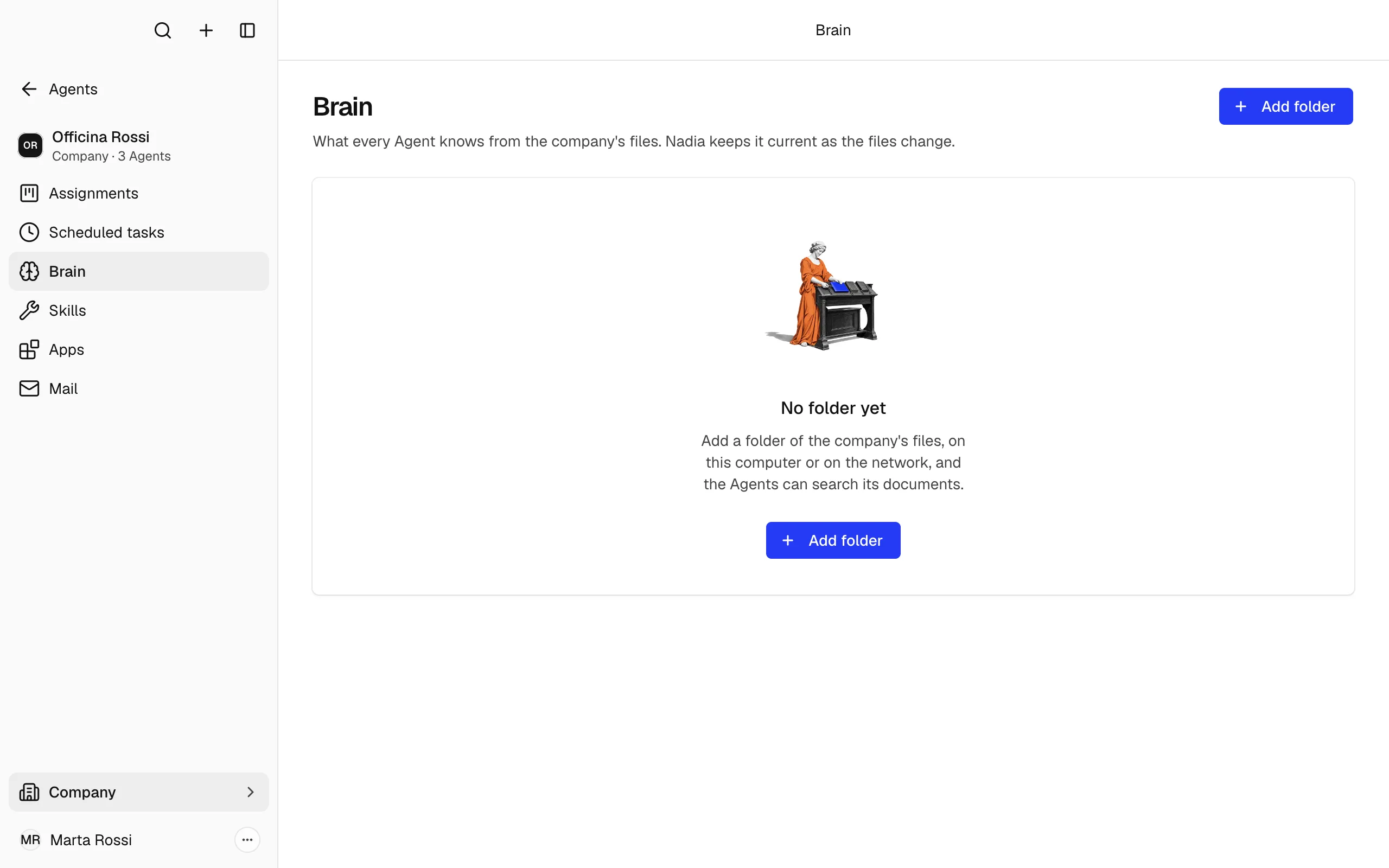
- Choose Add folder.
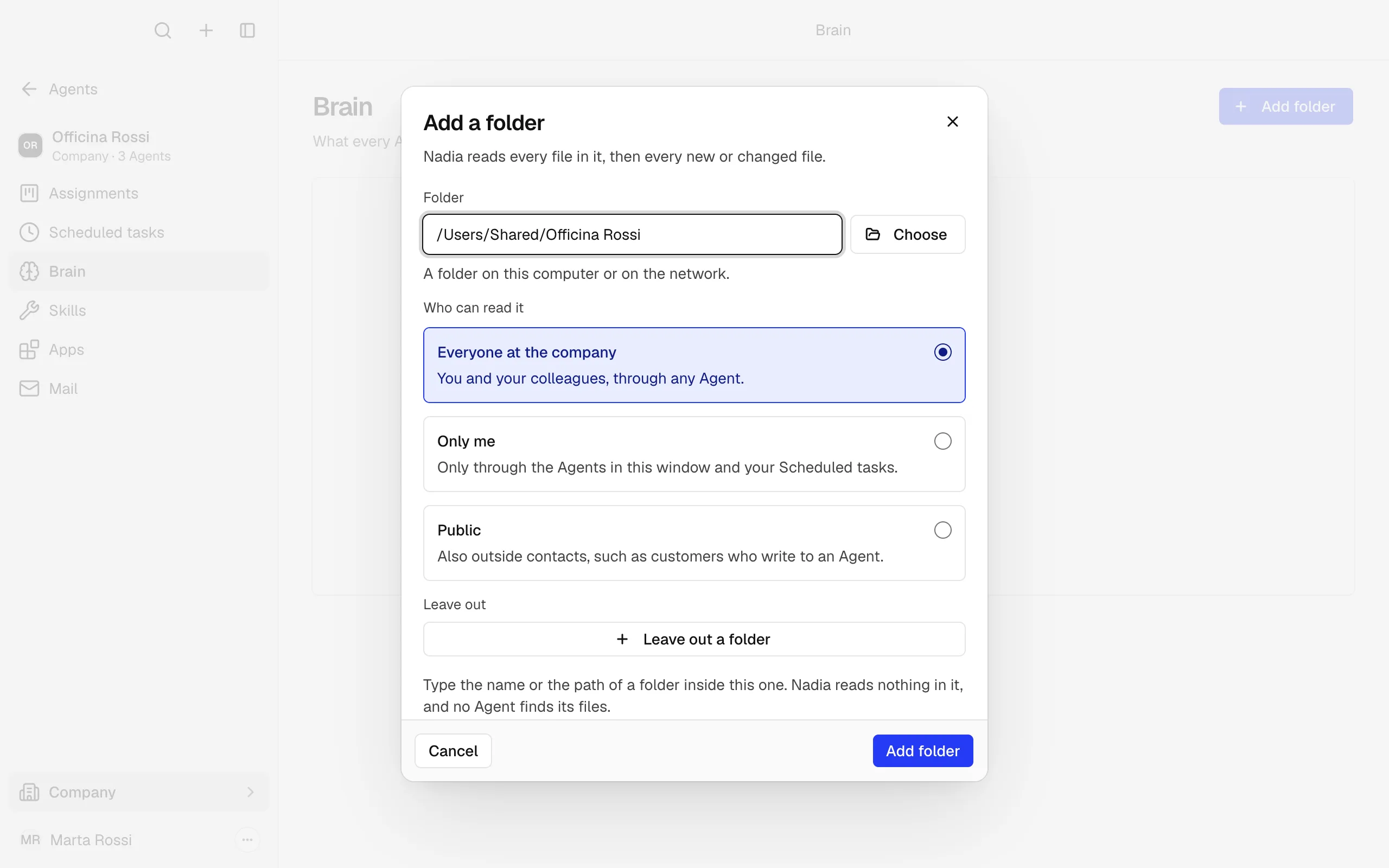
- Under Folder, type the folder's path, or, in the app on your computer, choose Choose folder to pick it. It can be a folder on this computer or on the network.
- Under Who can read it, keep Everyone at your company, or choose the groups and people who should read it instead, as the next section explains.
- If the folder holds things no Agent should read, such as personnel files, choose Exclude a folder and type the name of the folder inside it to exclude. Repeat for each one.
- Choose Add folder.
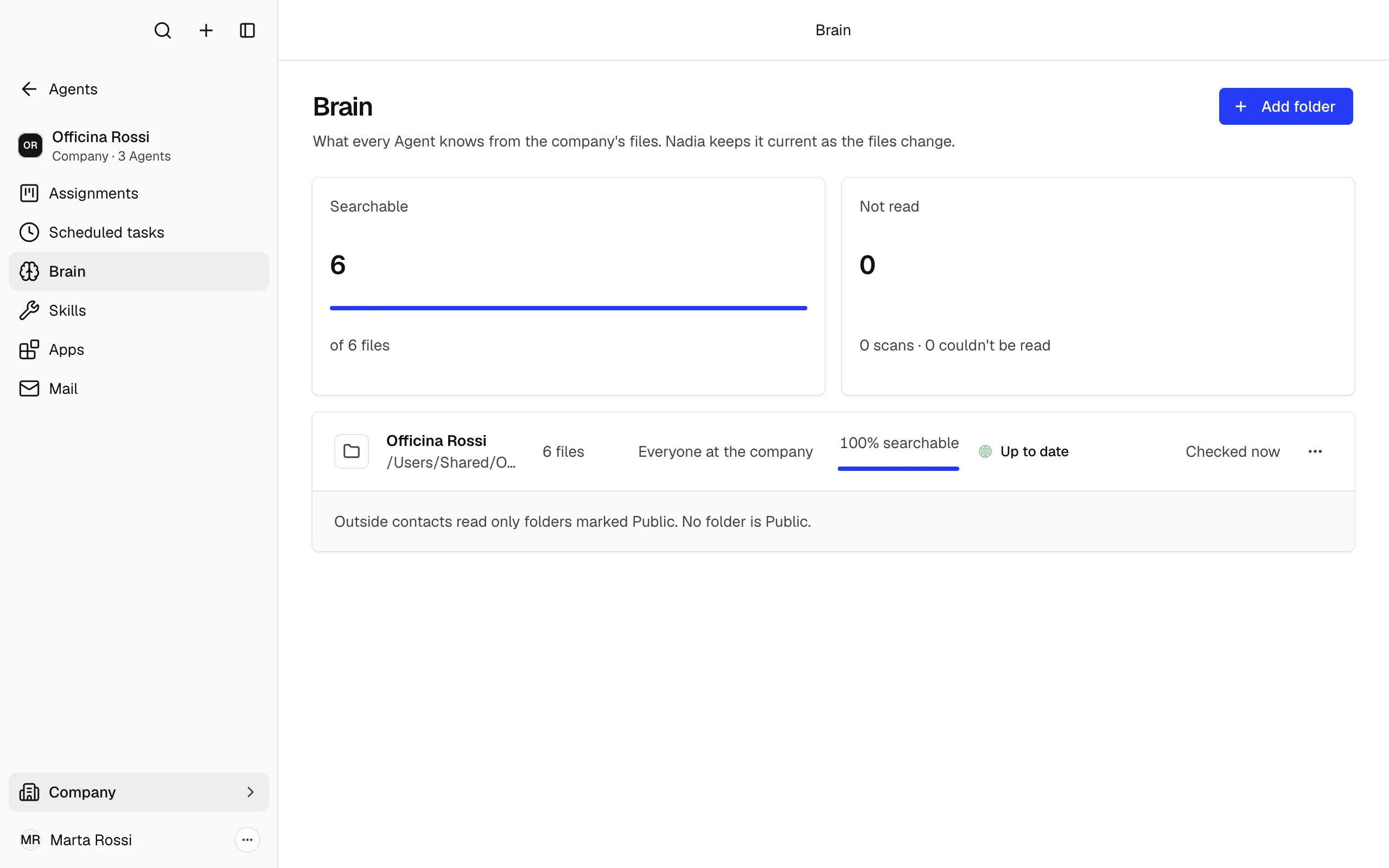
Nadia starts reading at once. The folder's row shows how much of it is searchable, and its status reads Updating until every file is read, then Up to date.
You can also ask an Agent to add a folder, in Nadia's window or in Alveare. She adds a folder inside the Nadia folder in your home folder, the one that holds each Agent's own folder, for everyone at the company to read. To change who can read it, open the folder here and choose Edit. She doesn't add a folder inside one the Brain already reads: you add that one yourself, here, to give it readers of its own. For files in a connected app or elsewhere on this computer, or for a website, she copies or saves them into a folder of her own there first. Any other folder you add yourself, here, with Add folder.
Who can read a folder
A folder's readers are the people who find its files through an Agent. You choose them under Who can read it from the company's People, and an Agent who answers someone finds only the folders that person may read. A folder has at least one reader, and you can choose several:
- Everyone at your company, shown with the company's name, such as "Everyone at Officina Rossi": everyone in People, someone added later included. Clients and suppliers find nothing in it.
- Anyone, including clients and suppliers: everyone in People, and anyone else who writes to an Agent too, such as a customer on a messaging channel. An Agent can quote these files to anyone who writes to her.
- A group: the people in that group, someone who joins it later included.
- A person: that person alone.
Type in Find a person or a group to find a group or a person. A folder can name up to 256 groups and people.
A folder inside another folder of the Brain can have readers of its own: add it as a folder too, and its files follow its readers, not the outer folder's.
These readers decide what an Agent finds when she searches the Brain. They don't lock the files themselves: an Agent works on this computer, and can open a file there when you or her work point her to it.
To change a folder's readers later, open its ⋯ menu and choose Edit. A reader who has since left People is still shown by name, marked No longer in People, and reads nothing. When none of a folder's readers is still in People, its status reads No one can read it and no Agent finds its files: open the folder and choose Edit to choose new readers. A change in People, such as someone joining a group, makes Nadia look at the Brain again at once, so the Agents find the folders for that change shortly after.
Readers from the folder's own permissions
On a Nadia that runs on Windows, a folder on this computer or on the network often already says who may open it. When you choose such a folder, Nadia reads its permissions and fills in Who can read it with the groups and people of People they name, and the dialog says Based on the folder's permissions. Check them before you add the folder: nothing is saved until you choose Add folder. Nadia recognizes people and groups that come from Microsoft 365, as a computer joined to your company's Microsoft 365 names them. A folder on a server of an older Windows domain names them in a way Microsoft 365 doesn't share, so for that folder you choose who can read it.
Nadia fills in nothing when the permissions name someone who isn't in People, refuse someone or don't reach every file in the folder, or when a file or folder inside has permissions of its own. The dialog then says why and keeps Everyone at your company, for you to change. On a Mac or Linux, and on a Cloud machine, it says Folder permissions are only available on Windows.
What Nadia reads
Nadia reads PDF, Word, Excel, PowerPoint, OpenDocument, RTF, EPUB, Markdown, text and CSV files, dBase tables (.dbf), saved web pages, saved emails (.eml) and Outlook messages (.msg), in the folder and every folder inside it. Of an email she reads its headers, its text and the names of its attachments. She doesn't read a Word file's page headers, footers and comments, an Excel workbook's hidden sheets, or what an email's attachments contain. She skips hidden files and folders, and the temporary files Office leaves while a document is open. A file that is an exact copy of another in the same folder is counted as a copy, and the Agents find it through the other.
Nadia can't read scanned pages yet. A document with text on some pages is searchable by that text; a document made only of scanned pages is not searchable. The folder's page counts its scanned files and pages under Scanned pages, so you know what the Agents can't find.
A file that can't be read, because a password protects it, it is damaged, it is too large or it holds no text, is counted under Couldn't be read on the folder's page. Choose Show files to see each one and why. Nadia reads it again when it changes, such as when you remove its password or replace it.
A very long file, with more than about 350 pages of text, such as a regional price list or an export of orders, is still read and found by any word in it: an Agent who searches for a code, a name or a price finds it anywhere in the file. A search in other words than the file's, such as "pipes" for a file that says "tubing", reaches only part of it. The folder's page counts these files under Very long files, and they need nothing from you. Nadia doesn't include a whole one by herself, because including it makes reading the folder take much longer. To have a search in any words reach all of a file, choose Show files beside the count, then Include in full on that file. Nadia starts including all of it at once, and keeps doing so when the file changes.
How the Brain stays current
Nadia looks at the folders every 30 minutes, and within a minute when you add a folder or choose Check now in a folder's ⋯ menu. She reads only the files that are new or have changed.
When a file is deleted from a folder, the Agents stop finding it at Nadia's next look, and its text is removed from the Brain a few days after that.
When a large part of the Brain's files disappears at once, such as when a network share shows only part of its files, the Brain keeps them until you confirm, and the folder's status reads Needs review. The Brain asks when more than half of all its files disappear, counting every folder together. In a larger Brain it also asks when more than 500 files disappear, or more than 50 that are over one in a hundred of its files. Meanwhile the Agents don't find the files that are no longer in the folder, and if the files come back, the Agents find them again.
Fewer files leave the Brain at Nadia's next look with no question, even when they are most of a small folder beside larger ones. If they come back, Nadia reads them again, as she reads new files.
- Open the folder. Its page says how many files are no longer in it.
- If they were deleted or moved on purpose, choose Remove files, then Remove files. The folder's status reads Removing files until Nadia has removed them.
If they weren't, put them back or reconnect the folder: at Nadia's next look, the folder is up to date again. Removing a folder from the Brain or excluding part of it never needs this step.
If the folder itself can't be reached, such as a network share that didn't connect, its status reads Unavailable. Nadia deletes nothing from the Brain while it is away, and the Agents keep finding what she already read. When the folder is back, Nadia finds it at her next look, or sooner if you choose Check again. A folder with no files left looks the same to Nadia as one that didn't connect: if you emptied it on purpose, choose Remove from Brain in its ⋯ menu.
A folder's own page
Choose a folder to open its page. It shows who can read it, when Nadia last checked it, and under Progress how many of its files are searchable, how many have scanned pages, how many couldn't be read and how many are very long. File types counts its documents, spreadsheets, presentations and emails.
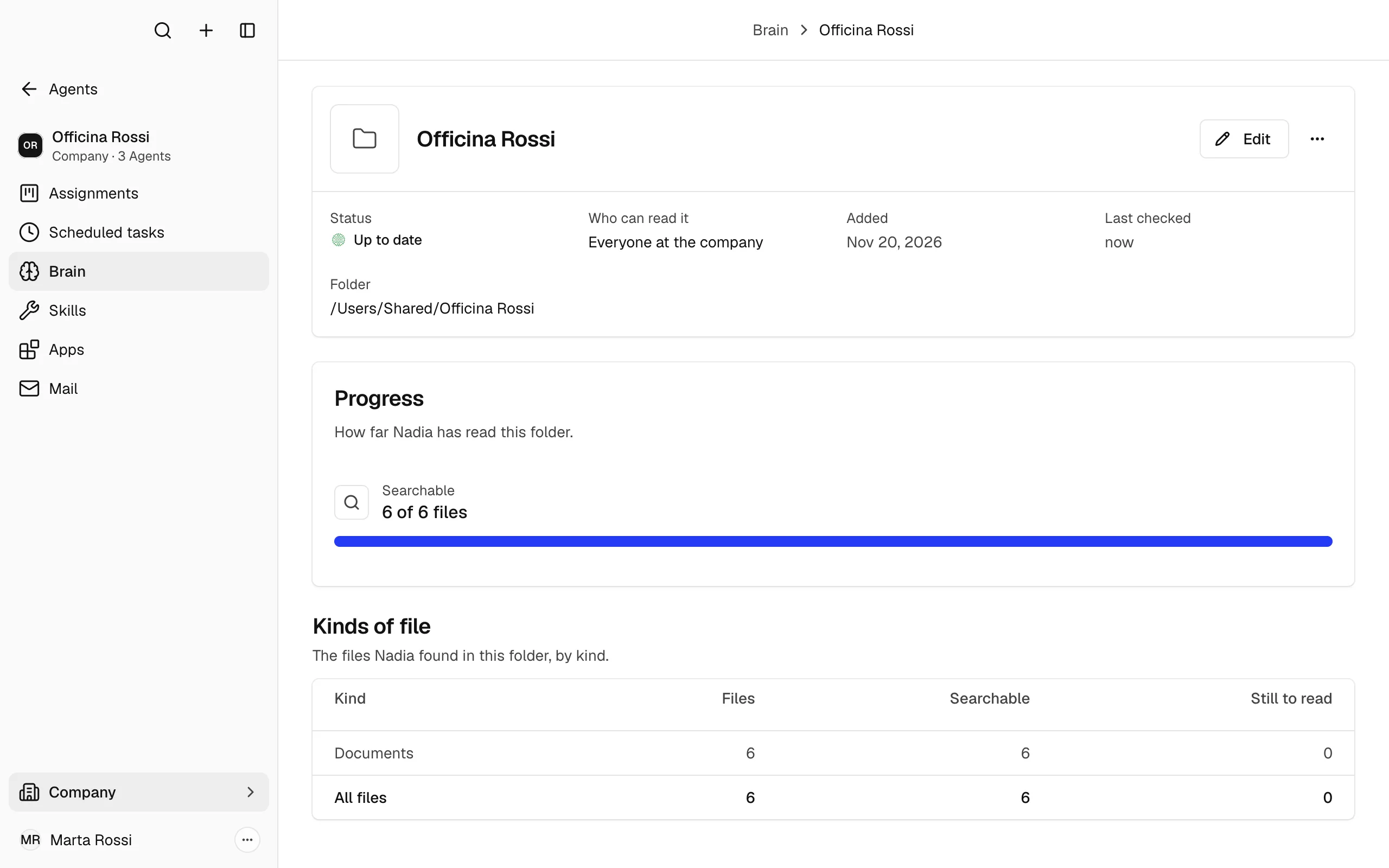
- Edit changes who can read the folder and which folders inside it are excluded.
- Remove from Brain, in its ⋯ menu, removes the folder from the Brain after you confirm. The Agents stop finding its files; the files stay in the folder.
How the Agents use the Brain
When a question touches the company, such as a customer, a supplier, a price or a way of working, an Agent searches the Brain. Each result gives the file, the day it last changed and the passage found. She opens the file to read it whole or to take a figure from it, and names the files she used in her answer, so you can check them.
What she finds depends on who she is answering, as Who can read a folder explains:
- In Nadia's window and in the terminal, she finds the folders the person signed in to Nadia may read. A scheduled task whose result stays in the window finds the same.
- In a direct message with one of the company's people, she finds the folders that person may read.
- In any other conversation in Alveare, she finds the folders everyone at your company may read, since she can't list who is in it.
- Answering a client or supplier, and in any conversation on another channel, such as a Telegram group, she finds only the folders set to Anyone, including clients and suppliers.
- A scheduled task that sends its result only to Alveare finds what everyone at your company may read; one that sends it to another channel finds only what clients and suppliers may read.
If the Brain can't search, the Brain page says why. Until it can, the Agents look through the folders' files themselves, and Nadia points each one only at the folders the person she is answering may read.
If you used the Wiki
The Brain takes the Wiki's place. At the update, each folder the Wiki read becomes a folder of the Brain, with the same folders excluded, readable by everyone at your company: open each one to check who should read it. The Wiki's own folder becomes a folder of the Brain too, readable by everyone at your company, so the Agents still find the pages its search showed, the changes people asked for included. The rest stays out of the Brain as it stayed out of the Wiki's search: its copies of documents, its archived pages, its map and log, any file that is not one of its pages, and the pages written from a folder you had left out. Its pages repeat what the documents they were written from said, so a folder you make narrower stays readable through them until you narrow or remove the Wiki's folder too. Single documents and web pages the Wiki read are not taken over: add the folders that hold the documents. Nadia no longer writes wiki pages: the Wiki's pages stay as they were, and you remove its folder from the Brain like any other.
If you used Only me or Public
Folders used to have one of three choices. At the update, a folder that was Everyone at the company stays readable by everyone at your company, and a Public folder reads Anyone, including clients and suppliers. Nothing changes for the people who read them.
Only me is gone: a folder for one person now names that person. A folder that was Only me goes to the person signed in to Nadia, and its status reads Check access in the list and on its own page. Open it, choose Choose who can read it, check its readers and save. Until Nadia knows who is signed in, such as while she can't reach your account, its readers read No one yet and no Agent finds its files.