Chats and voice
Give an Agent work in a chat, by writing or by voice, and watch what she opens beside it.
A chat is where you give an Agent work. This page covers writing to her, talking to her, and what to do when a reply cannot come.
Give an Agent work
Each Agent has one main chat, which a click on her row opens. Messages other Agents send her show there too.
-
Click her row in the Agents list.
-
Write your message in the chat box and press Enter.

-
Read her reply in the chat.
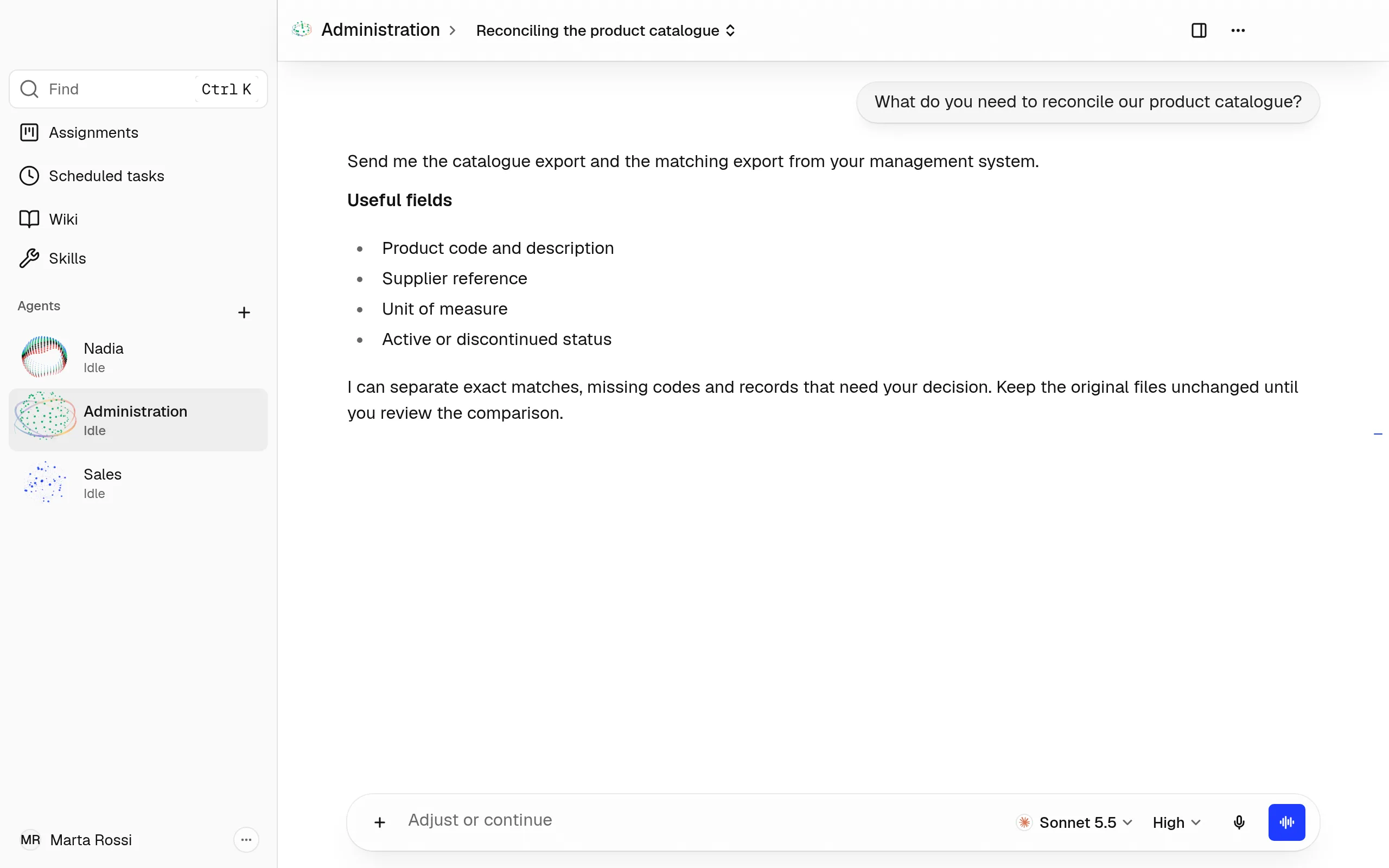
Start a new chat
- Press ⌘N on a Mac, Ctrl+N on Windows. Or open her menu and choose New chat.
- Write your message.
New chat starts another chat with the same Agent. Once an Agent has a second chat, the header names the chat on screen. A click on it lists her chats, newest first, with Find a chat and New chat.
A conversation an Agent had on a Channel, or with another Agent, opens read-only from a notice or a link.
Attach files
- Click the + in the chat box: Attach files and more.
- Choose files, a folder or images to send with your message.
In the same menu, Record a procedure asks the Agent to record a procedure you show her on a website: see Record a procedure.
You can also drop files on the chat: Drop files to attach.
Choose the model
- Click the model in the chat box.
- Choose another model for this chat, and a level of Reasoning where the model offers one.
The model an Agent starts every chat with is set in her Profile.
Watch what she opens beside the chat
- Click Open the side panel, in the chat's header. The panel opens beside the chat.
- Use the switch at the top of the panel to change between Browser and Artifacts.
- Press Esc to close the panel.
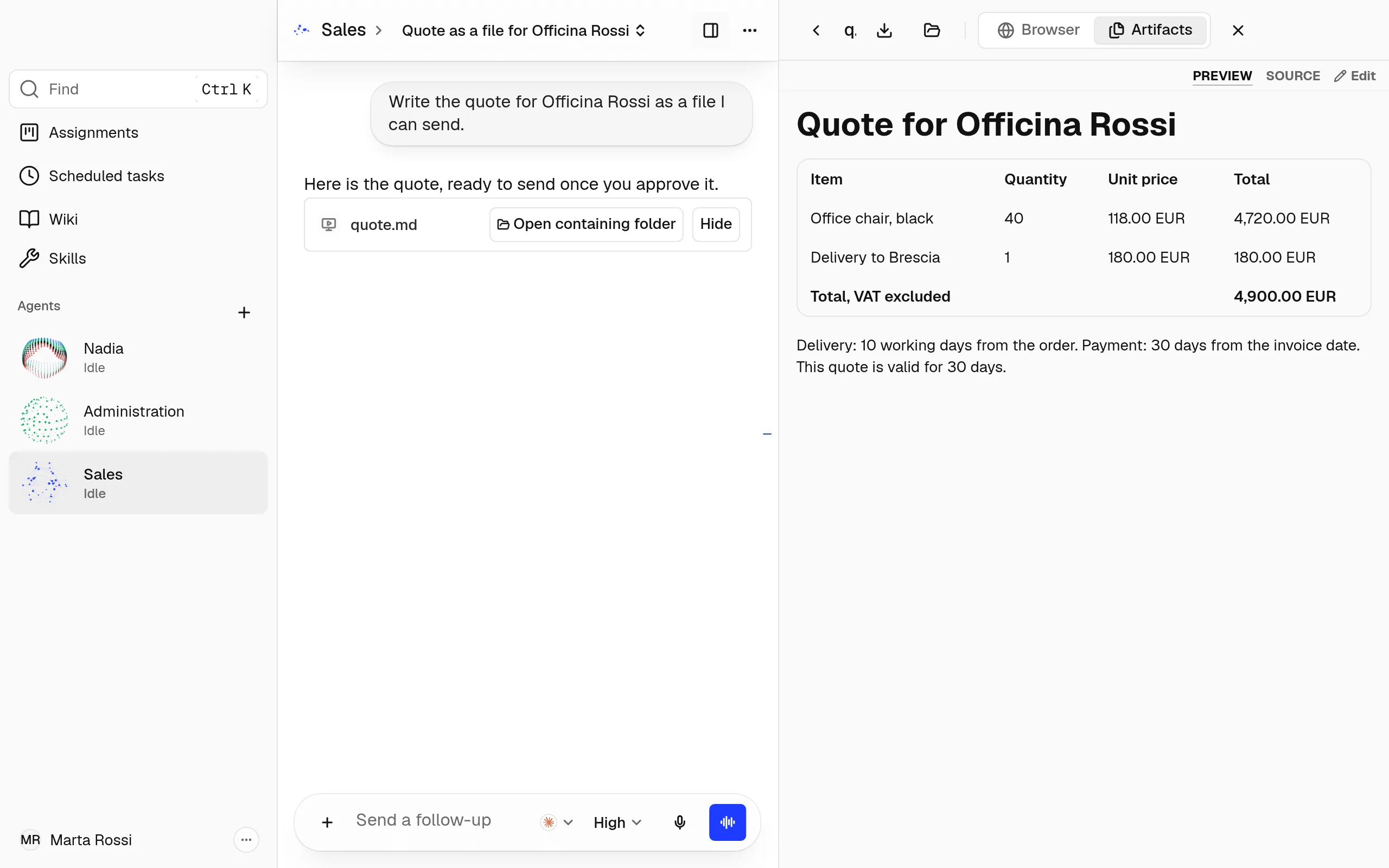
- The Browser shows the pages the Agent opens while she works. ⌘⇧L on a Mac, Ctrl+Shift+L on Windows, shows or hides it.
- Artifacts lists the images, files and links of this Agent's main chat and her 30 most recent other chats, not those of scheduled tasks. A file opened from the chat shows there.
Talk to an Agent
- Click Start voice conversation, the button at the right end of the chat box. Or press Control+B on a Mac, Ctrl+Alt+V on Windows.
- Talk. You hear the Agent's answer.
- To finish, click End voice conversation, or press the same keys again.
Warning
When the computer blocks the microphone, the window says Nadia can't use the microphone. Allow Nadia to use the microphone in this computer's privacy settings, then try again.
Dictate a message
- Click the microphone in the chat box: Dictate a message.
- Say your message, then click the microphone again to stop.
- Read it in the chat box, then send it.
Dictate a message turns what you say into a message you can read before sending.
Ask from the terminal
On a Mac or a Linux computer, opening Nadia puts a command in the terminal: nadia. It works while Nadia is open and signed in.
- Open the Terminal.
- Type
nadia "your message"and press Enter. Nadia's answer appears below it.
- To ask another Agent, add
-pand her name:nadia -p Sales "Prepare the quote for Rossi". - After each answer, the command shows how to continue that chat:
nadia --chatfollowed by the chat's code. nadia --helplists what the command does and the names of your Agents.
If the Terminal can't find nadia, add the line export PATH="$HOME/.local/bin:$PATH" to the file .zprofile in your home folder on a Mac, or .profile on Linux, then open a new Terminal window. On Windows there is no nadia command.
When a reply cannot come
- Nadia couldn't reach the model: Your message is kept. Try again in a moment.
- No model usage left: Your Agents reply again once you add Extra usage or your plan renews. See Account, usage and billing.