Passwords
Give an Agent a login, a card, an address or a key, without writing it in a chat.
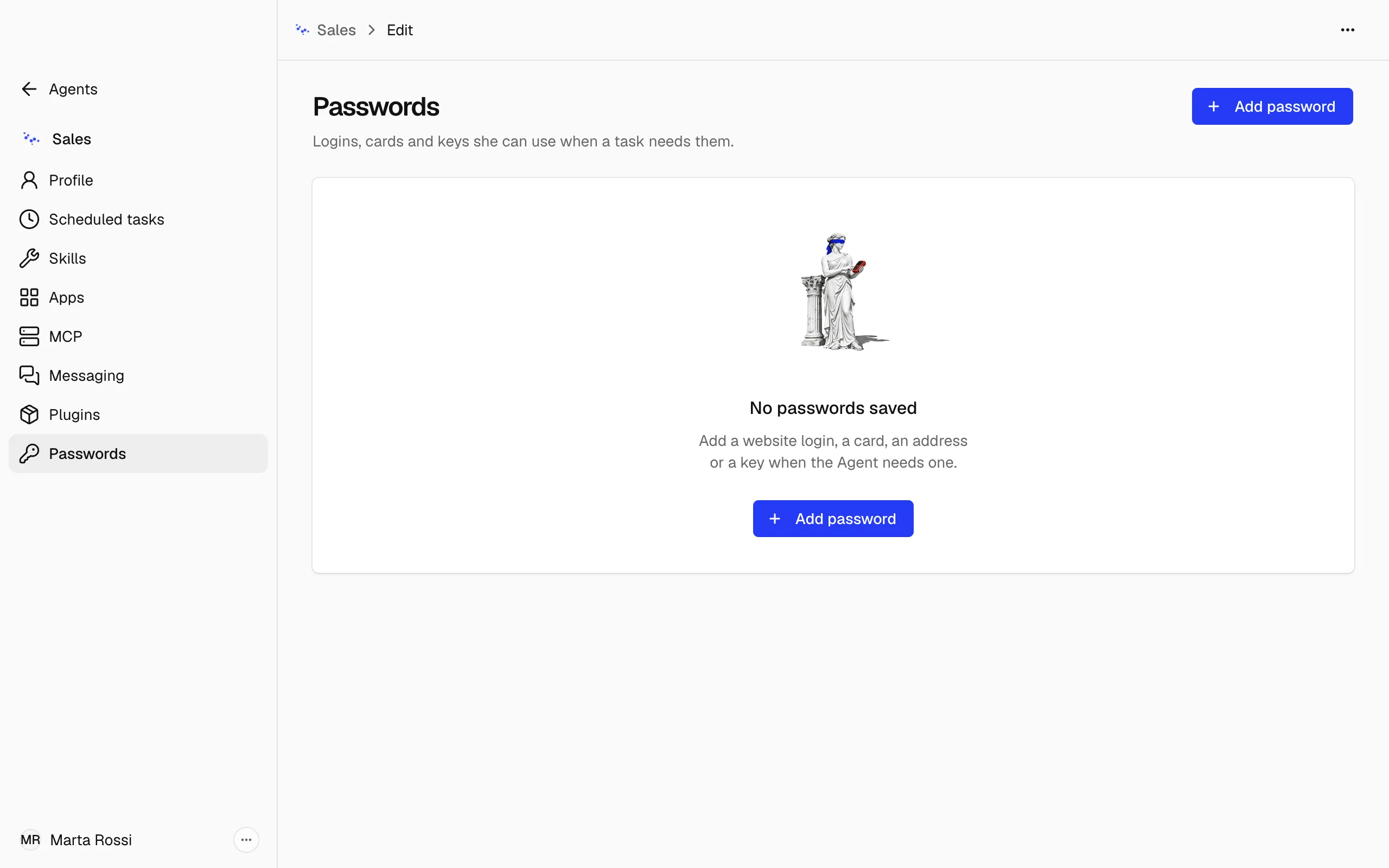
Passwords are the logins, cards, addresses and keys an Agent can use when a task needs them, so nobody has to write them in a chat. They are in the Passwords section of her Edit page.
Add a login
-
Open the Agent menu, choose Edit, then Passwords.
-
Choose Add password, then Website login.
-
Type the website where the Agent signs in, like acme.com.
-
Under Signs in with, choose what the site asks for on its sign-in page, such as Email, and type it.
-
Type the Password.
-
If you have the site's setup key for one-time codes, type it in Key for one-time codes (optional). With it saved, the Agent enters those codes herself.
-
Choose Add password.
Add a card, an address or a key
- Choose Add password, then the kind: Card, Address or Key.
- For a card or an address, type the website where the Agent uses it, and a name that tells it apart, like Company card or Office.
- Fill in the rest. A card asks for its number, expiry and security code. An address asks for its street, city, postcode and country.
- For a key, type a name, such as ACME_API_KEY, with letters, digits and underscores, and its value on one line, without accented letters. Tools read this value by its name.
- Choose Add password.
A saved value is never shown again in the window.
Delete a password
- In the list, open the ⋯ menu of the password.
- Choose Delete password, and confirm. The Agent can no longer use this password.
How the Agent uses them
The Agent fills a login, a card or an address into the site in her Browser, and only on the site you saved it for. She never sees a login's password or a card's details, only what the login signs in with. She uses one only when a task needs it.
Whatever her Permissions, the app asks you before she fills a saved card into a page. Where nobody is there to answer, such as in a scheduled task, she cannot fill one.
Warning
A key is different. The tools she runs read a key by its name, so she can read its value too.
When a site has no login yet
Don't write in a chat a login the Agent should use. When she reaches a sign-in page she has no login for, the window asks you for it in a prompt of its own, with Save & sign in or Don't save. A login you save there is in the Agent's Passwords section.
When a site asks for a one-time code and no key for it is saved, the window asks you for the code.
Where other secrets go
- A Channel's token: Messaging, in the Channel's form.
- An MCP server's key: MCP.
- A mailbox's password: Settings, Mail.