Agents and New Agent
Who the Agents are, and how to make a new one with Nadia or by yourself.
This page shows who the Agents are and how to make a new one: with Nadia, from an Agent template, or by yourself.
The team
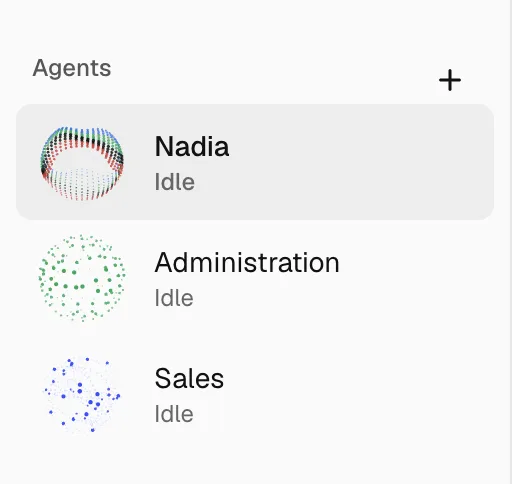
- Nadia comes first. Her description in the list reads: The company's first Agent and chief of staff: coordinates, checks and reports on the other Agents, and sets up new ones.
- Every other Agent is named for her role, such as the purchasing office or the tenders office. Anyone can give work to any Agent directly.
- Agents ask each other for help directly. A message from another Agent shows in the receiving Agent's main chat.
- Each Agent works in a folder of her own on the Installation, named after her. A new name or look keeps the folder.
Make a new Agent
-
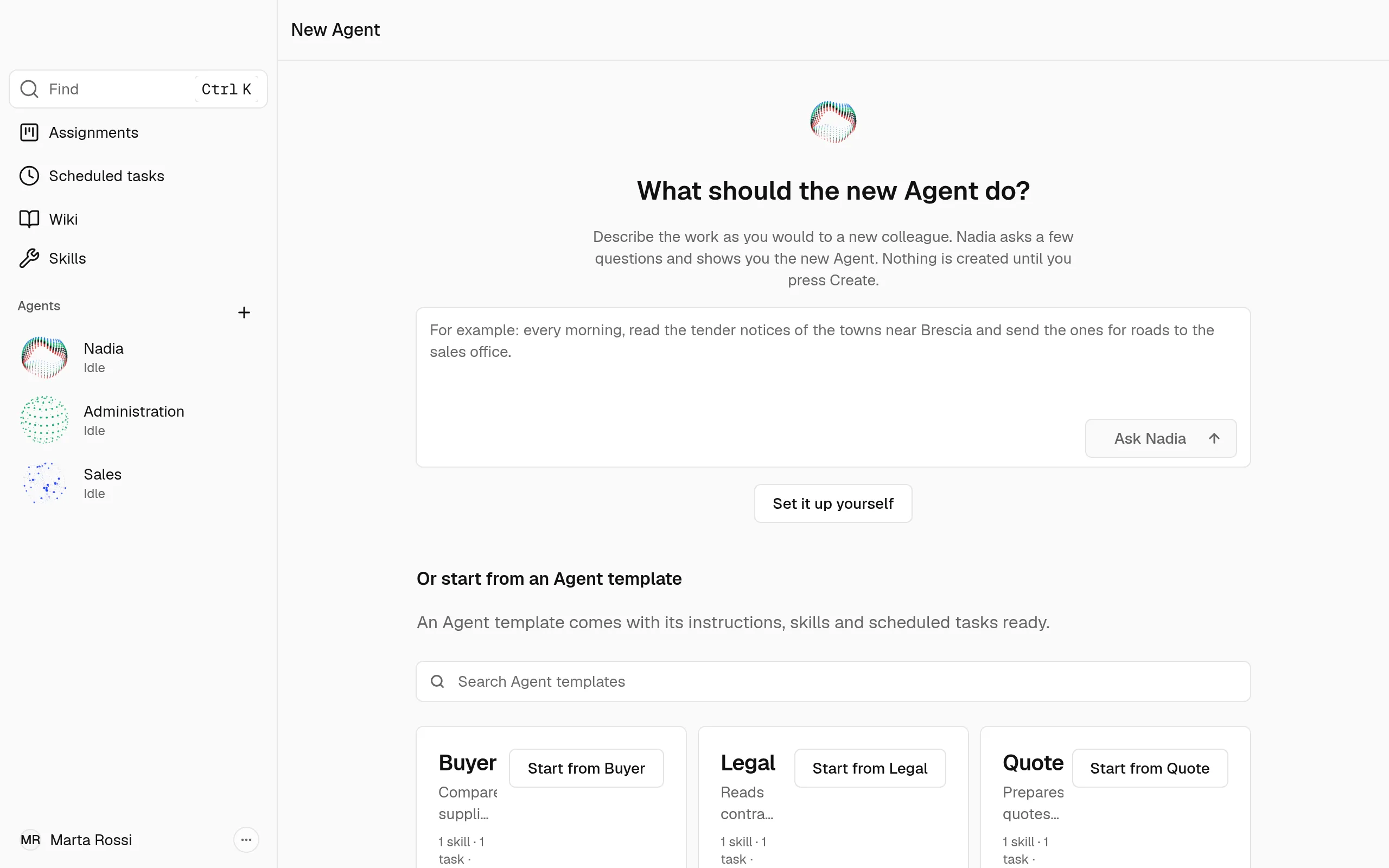
Click the + beside the Agents heading. It is named New Agent.
-
Read the question: What should the new Agent do?
-
Choose how to make her: Ask Nadia, an Agent template, or Set it up yourself. The next three sections take each in turn.
Make an Agent with Nadia
- Describe the work in the box, as you would to a new colleague.
- Click Ask Nadia. Your answer goes to Nadia's chat. Nadia asks a few questions and fills in the new Agent's settings for you.
- Read the card Nadia shows in her chat. To change something, tell Nadia. Or click Change by hand, which opens the same page as Set it up yourself.
- Press Create, as the section on Create below says.
Make an Agent from an Agent template
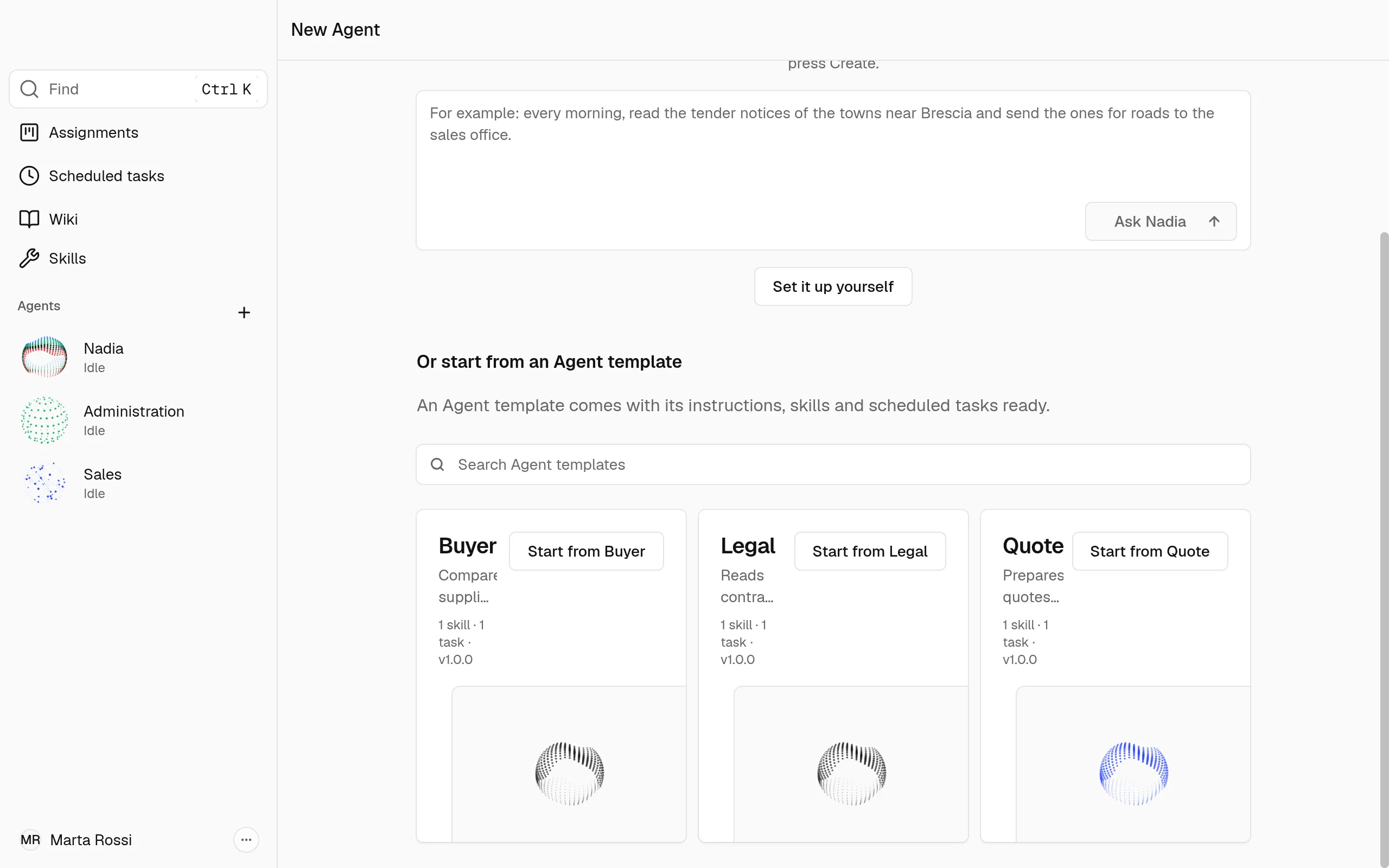
An Agent template comes with its instructions, skills and scheduled tasks ready.
-
Under Or start from an Agent template, look through the Agent templates your company can use. Each card shows how many skills and tasks the Agent template comes with, and its version.
-
Search the list by name, or by what the Agent template does.
-
Click Start from and the Agent template's name, such as Start from Quote.
-
The settings page opens with the Agent template's settings filled in, under Starts from. Add the company's details, then press Create.
An Agent made from an Agent template takes a minute or two to set up: This takes a minute or two. You can keep working meanwhile. If it fails, her row says Not added, with Try again. Her Profile names the Agent template and the version she came from.
Make an Agent by yourself
-
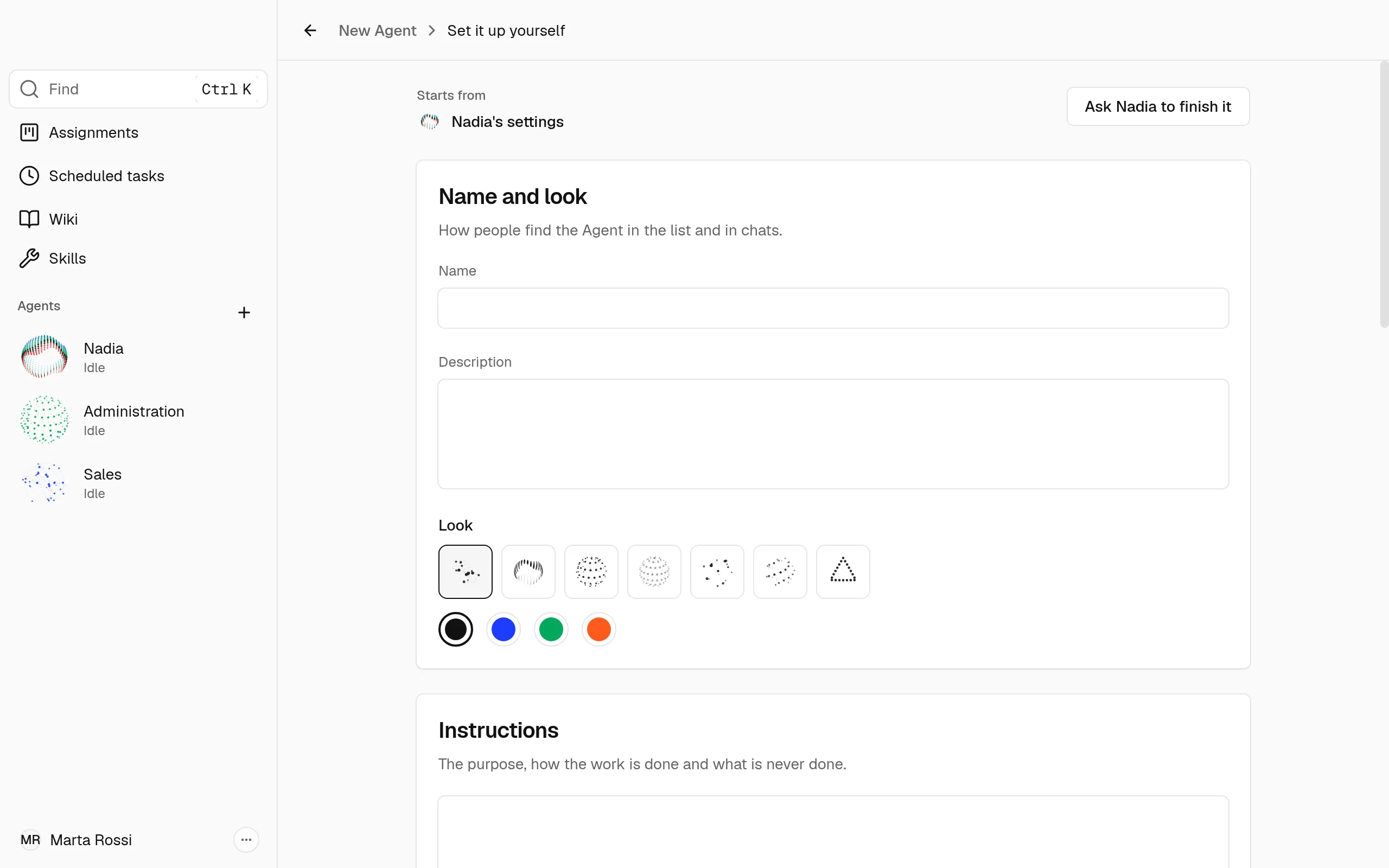
Click Set it up yourself. One page shows every setting of the new Agent.
-
Under Name and look, give her a name, a description of 100 characters or fewer, and a look.
-
Under Instructions, write what she is for.
-
Check Permissions, then add the Skills, Apps and Scheduled tasks the work needs.
-
Press Create. Or click Ask Nadia to finish it: Nadia keeps what you filled in and asks you only about what is missing.
What each setting means
- Starts from: Nadia's settings, or the Agent template you chose.
- Name and look: how people find the Agent in the list and in chats.
- Instructions: the purpose, how the work is done and what is never done. With an Agent template, the Agent template writes them and replaces them when it updates.
- The company's details: what every task needs to know, such as the region, the trades and the customers. They are kept when an Agent template updates.
- Permissions: when the Agent asks for your approval before acting, with Ask before each action, Ask me only when unsure or Act without asking. They start on Ask me only when unsure unless you choose another.
- Model: Nadia's model, or the one the Agent template sets. Change it from Edit after Create.
- Skills: what the Agent knows how to do.
- Apps: the services the Agent works in. Each app is connected once, for every Agent. Connect an app a scheduled task needs before Create, since scheduled tasks run with nobody watching.
- Scheduled tasks: the work the Agent does on a schedule, with nobody watching.
Create the Agent
- Press Create, with her name on the button.
- Wait while the card shows each step.
- When she is ready, the card offers to run her first scheduled task and to open her chat.
Note
Nothing of the new Agent exists until you press Create. Cancel, while Create has not started, clears the settings.
Delete an Agent
- Open her menu: right-click her row, or click the ⋯ in the header of her chat.
- Choose Delete with her name. The window asks first.
Warning
The instructions, skills, scheduled tasks and conversations on this Installation are deleted with the Agent. This cannot be undone.
Her folder and its files stay on the Installation. Nadia cannot be deleted.