Apps and MCP
Let an Agent work in your apps, such as Gmail or Notion, and give her more tools through MCP servers.
An app is a service your company already uses, such as Gmail, that an Agent works in with its own sign-in. An MCP server gives her more tools. Both are sections of the Agent's Edit page.
Connect an app
-
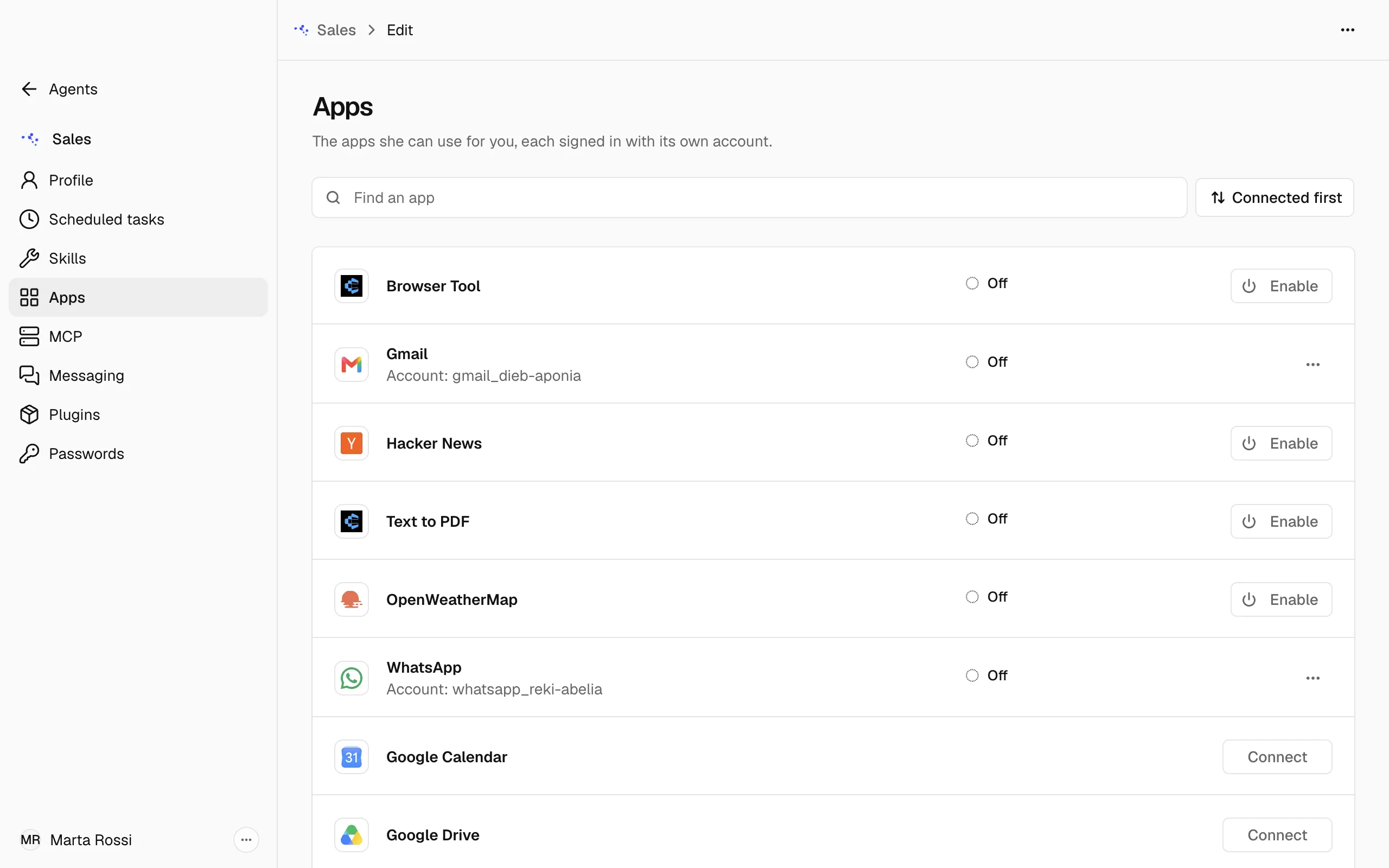
Open the Agent menu, choose Edit, then Apps.
-
Find the app in the list, or type its name in the search field. Connected apps come first.
-
Choose Connect. Nadia opens the app's own sign-in in your browser.
-
Sign in there and finish. Until you do, the row says that Nadia is waiting, with Stop waiting in case you change your mind.
Note
You connect an app once, for every Agent. Each Agent has its own switch for whether she uses it, as the next section shows.
Choose which apps an Agent uses
- On the Agent's Apps section, find the connected app.
- Choose Enable or Disable, in the app's row or in its ⋯ menu.
The row shows where the app stands:
- Off: this Agent does not use the app. Choose Enable.
- Needs reconnecting: the row shows Connect again. Choose it and sign in again.
- Sign-in not finished: you started the sign-in and did not finish it. Finish it in your browser, or choose Open the page again to open it once more, or Stop waiting to give up.
When an Agent needs an app that is not connected
In the window she shows a card to connect it. On a Channel or in Alveare she sends you a link to open.
Disconnect an app
- Open the Portal and choose Account.
- Choose Connected apps.
- Choose Disconnect for the account.
Add an MCP server
-
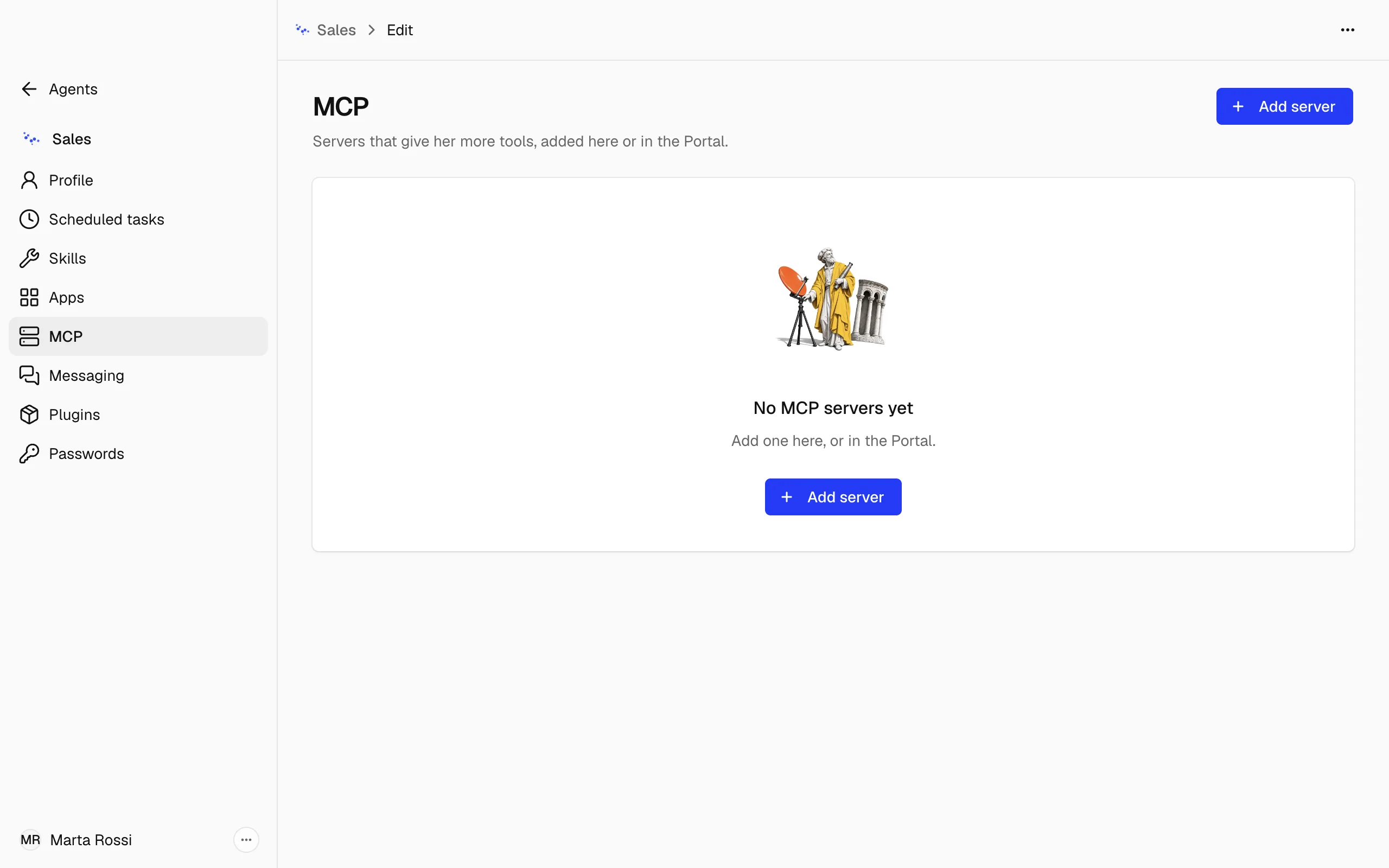
Open the Agent menu, choose Edit, then MCP.
-
Choose Add server.
-
Type a Name. It is how the server shows in the Agent's list.
-
Under Kind, choose Over HTTP for a server at a web address, or Local program for a program that runs on this computer.
-
Fill in what that kind asks for, as the next section lists, and choose Save.
What each kind asks for
- Over HTTP: the server's URL, any Headers it asks for, and Sign-in. Choose Key when the server needs a key, and paste it there. Choose With the service when it signs in with the service: after saving, choose Sign in on its row.
- Local program: the Command to run, its Arguments and Environment variables, and the Folder where the program starts. Leave the folder empty for the usual place.
Change, turn off or remove a server
A server added here has a ⋯ menu with Edit server, Enable, Disable and Remove. Removing a server takes away the tools it gives the Agent.
Each row says where the server came from: From the Portal, From a plugin or Added on this Installation, with its kind and how many tools it gives. A server from the Portal or from a plugin is changed where it came from, not here.
A row can also show Off, Connecting or Needs sign-in. For the last one, choose Sign in.