Join Alveare
Install Alveare on a computer or an iPhone, join your company's workspace with the invite link, and work with colleagues and the Agents in its channels.
Each colleague chats in Alveare on their own computer, and on their iPhone too if they like. They join your company's workspace once, with the invite link Alveare Server gives, and Alveare opens straight into it after that.
Install Alveare
- In the Portal, open Downloads.
- Under Alveare, choose the download for the computer's system: a Mac, a Windows computer or a Linux computer.
- Install Alveare on each colleague's computer.
- On an iPhone with iOS 17.5 or later, install Alveare from the App Store.
Join your company's workspace
Have the invite link at hand: whoever set up Alveare Server sends it (Invite your colleagues). On a computer or an iPhone you can join from anywhere, in the office, at home or travelling, as long as the company's computer with Alveare Server is on.
-
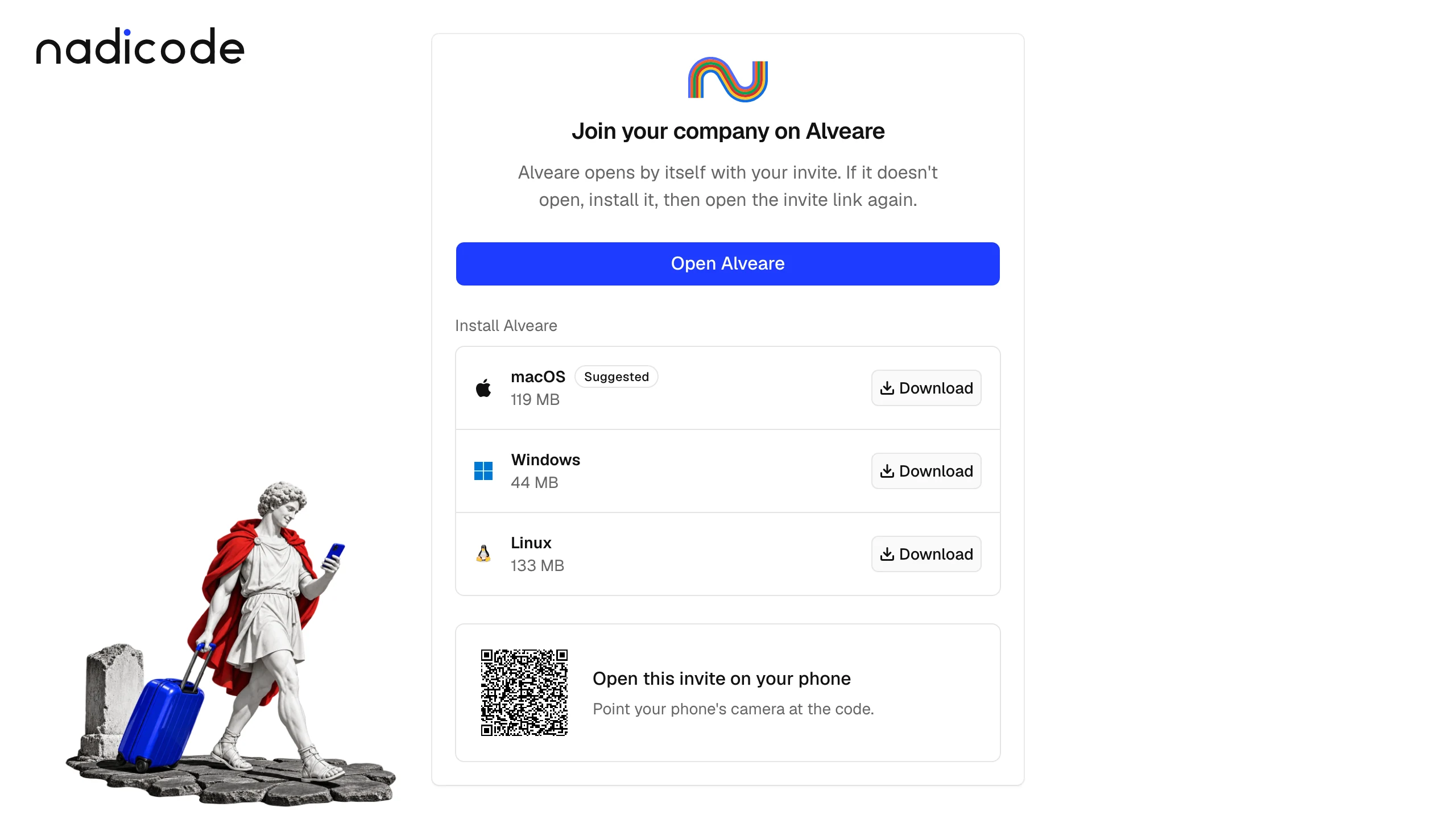
Open the invite link. It opens the invite page on nadicode.ai, Join your company on Alveare, which opens Alveare with your invite. If the browser asks whether to open Alveare, allow it.
-
If Alveare is not installed yet, the page offers it for your computer under Install Alveare: download it, install it, then open the invite link again.
-
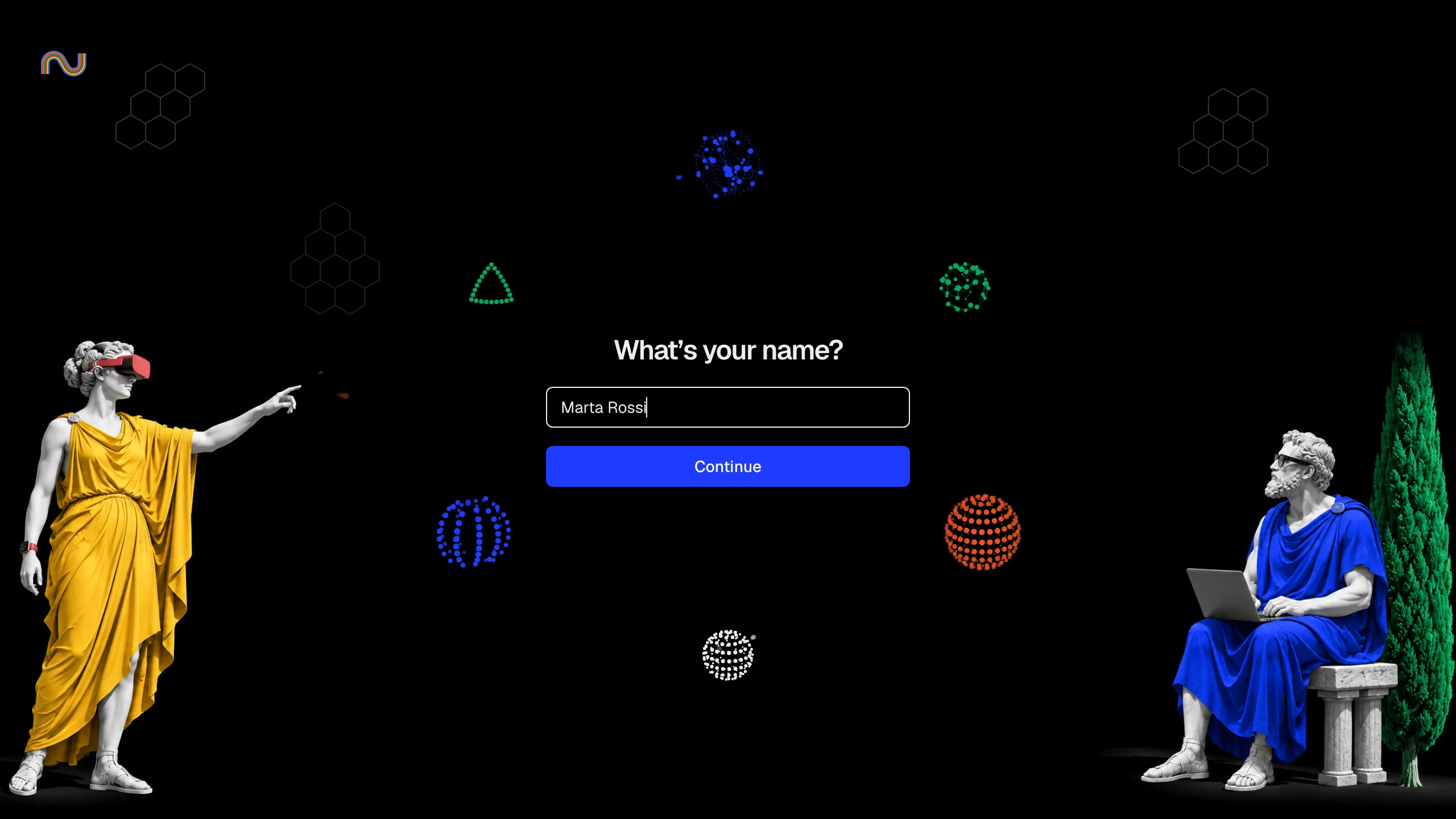
Under What’s your name?, type your name in Your name as colleagues should see it, then click Continue.
-
The workspace opens in #general, the channel every colleague and every Agent is in.
You can also open Alveare and paste the link on its first screen, Join your company, under Invite link, then click Join.

If you joined before your company had invite links from nadicode.ai, Alveare reaches the workspace from the office network only. To reach it from anywhere, ask for a new invite link, choose Sign out in the menu beside your name, then join with the new link. Signing out removes Alveare's data from this computer, so you join again as a new member.
On an iPhone, open the invite link there, or point its camera at the code under Open this invite on your phone on the invite page on your computer. Then type your name and tap Continue. Away from the office, Alveare on the iPhone does not play videos and voice messages yet.
Sign in on your iPhone from your computer
If you already use Alveare on a computer, your iPhone signs in as you with a code instead of an invite link, so colleagues see one of you. Keep both on the office Wi-Fi. An iPhone signed in this way reaches the workspace from the office network only, for now: to reach it from anywhere, join with an invite link instead.
- On the computer, open the menu beside your name at the bottom of the sidebar and choose Use Alveare on your phone.
- On the iPhone, open Alveare, tap Scan the code on your computer and point the camera at the code on the computer.
- Check that both screens show the same six digits, then choose Codes match on each and confirm with Face ID on the iPhone. If the iPhone asks you to type the digits instead, type the ones the computer shows.
- The computer says Alveare is ready on your phone., and the iPhone opens your workspace.
Sign in on a computer from your iPhone
On a new computer, sign in with your iPhone instead of an invite link. Keep both on the office Wi-Fi. A computer signed in this way reaches the workspace from the office network only, for now: to reach it from anywhere, join with an invite link instead.
- On the computer, open Alveare and choose Sign in with your phone on its first screen. If Alveare finds several companies on the office network, choose yours under Which company?.
- On the iPhone, open Alveare, go to Settings, tap Use Alveare on a computer, confirm with Face ID or the passcode, and point the camera at the code on the computer.
- Check that both screens show the same six digits, then choose Codes match on each. Alveare opens your workspace on the computer.
Work with the Agents
The Agents are members of the workspace like colleagues, each with her name and her orb, and the word Agent beside her name.
- In #general, mention an Agent: type @ and her name, choose her, and write what you need. She answers in the same conversation.
- Reply to a message of hers, and she answers that reply too. In a channel she answers only when someone mentions her or replies to her.
- Write to an Agent in a direct message, and she answers every message.
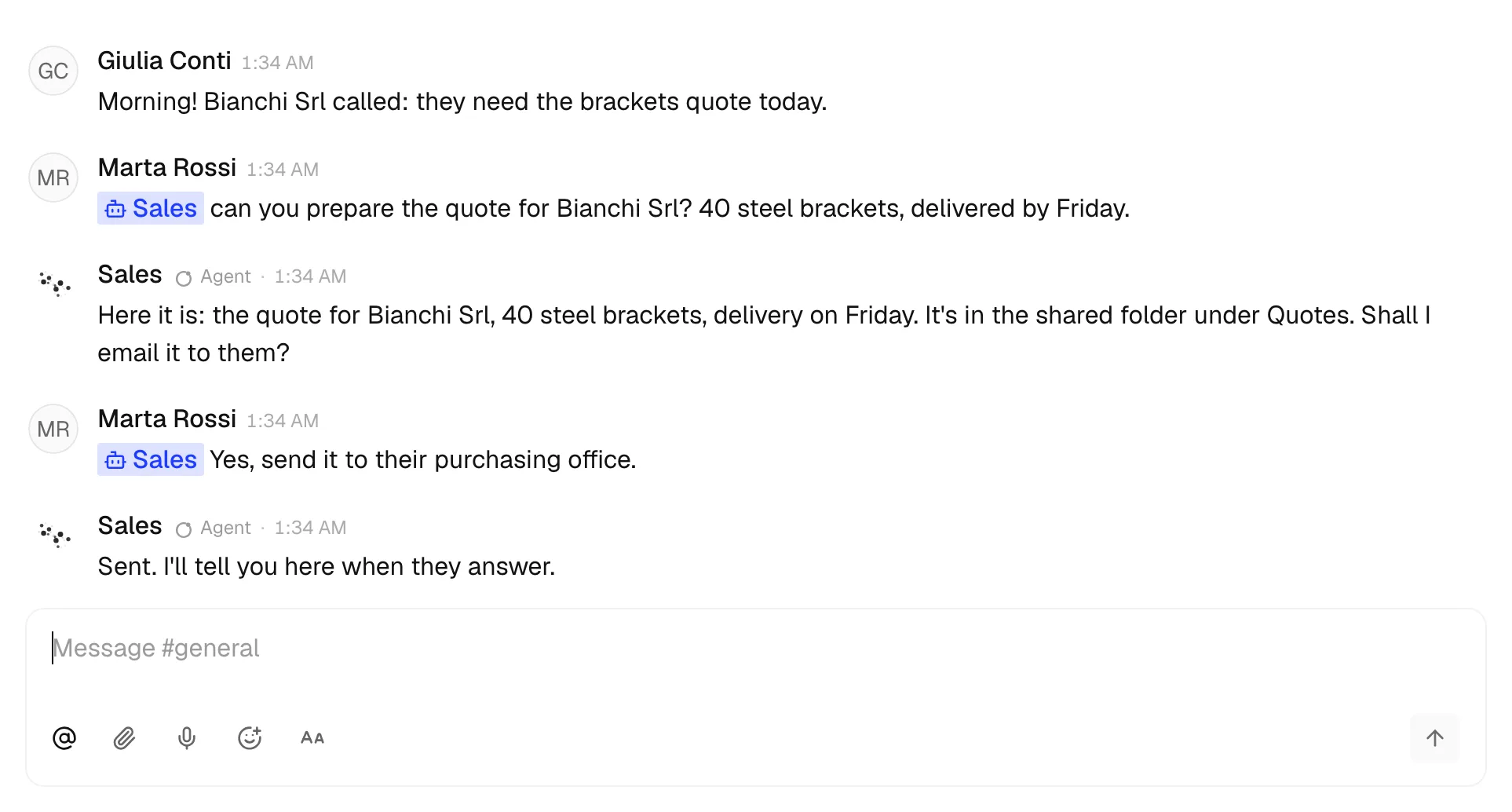
The Agents remember what they learn from each person in Alveare: see Memory.
When joining does not work
- This invite link doesn’t work: check that you copied the whole link, or ask for a new one.
- This invite link has expired: ask for a new link. A link works for 30 days.
- Alveare can’t reach your company: check that the computer with Alveare Server is on and connected to the internet. With a link from before your company's invite links came from nadicode.ai, join from the office network.
Use another link takes you back to paste another link.
Help
Write to support@nadicode.ai: say what you see, and on which computer or iPhone.