Scheduled tasks
See, run and change the work the Agents do on a schedule, such as a report every Monday.
Scheduled tasks, at the top of the Agents list, shows every Agent's scheduled tasks on one page, each with its last or next run and its state. Failed tasks come first. When a task fails, a red count beside Scheduled tasks says how many.
Add a task
- At the top of the Agents list, choose Scheduled tasks, then New task.
- Choose the Agent, give the task a Name and write its Instructions: what the Agent should do each time.
- Under Run, choose how often, then, for a task that runs at a time of day, the Time. Run offers every 15 minutes, every hour, every few hours, every day, every weekday, every week and every month.
- Choose Save. It stays disabled until you have written what the Agent should do and chosen when.
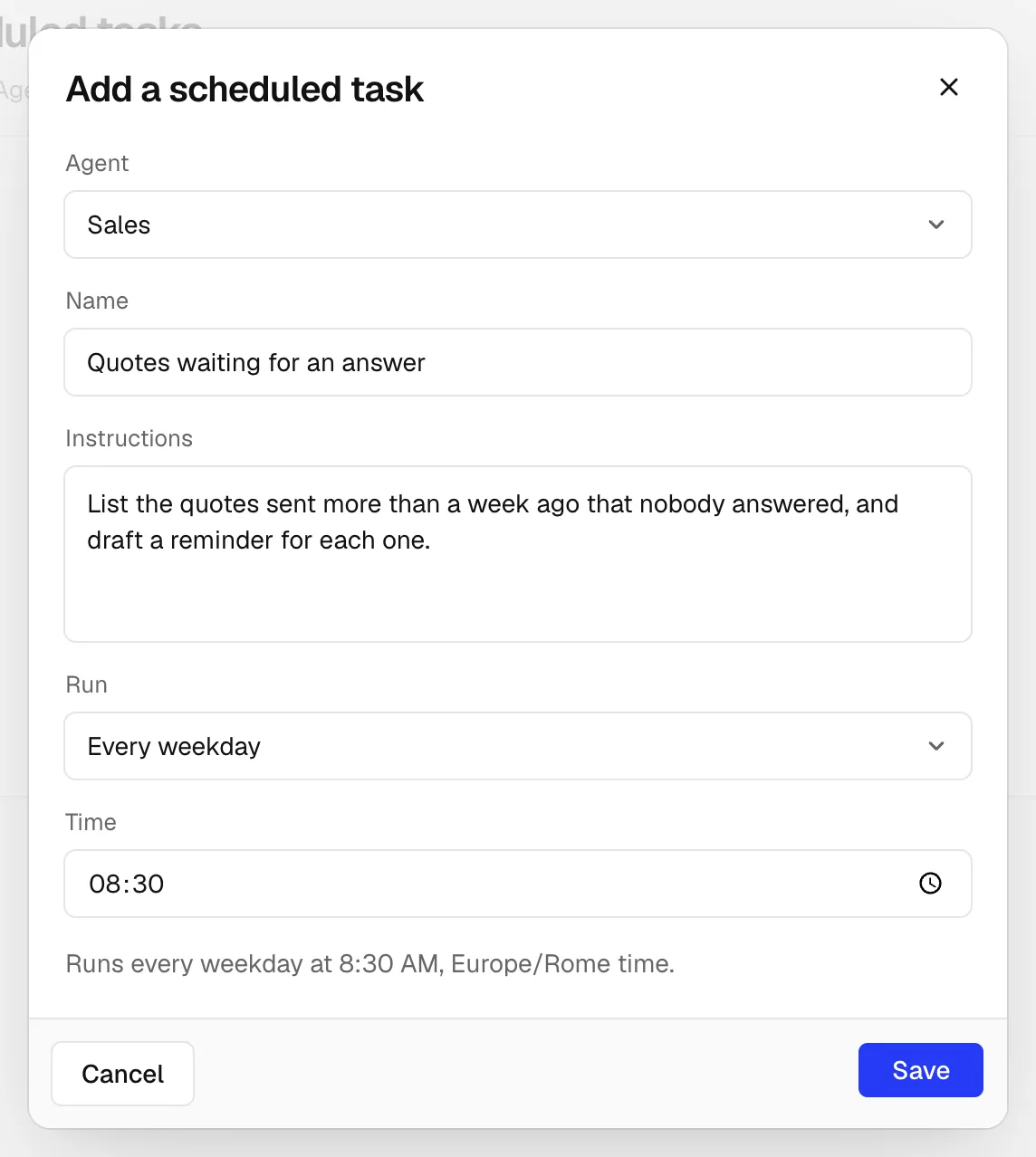
Under the fields the window repeats the schedule, with its time zone. You can also ask an Agent in a chat to add, change or remove one of her tasks: Ask an Agent in a chat to do something every day or every week, and it shows here.
Find a task
- Type in Search tasks to find a task by its name, its Instructions or its Agent.
- Choose Filter to show only one Agent's tasks.
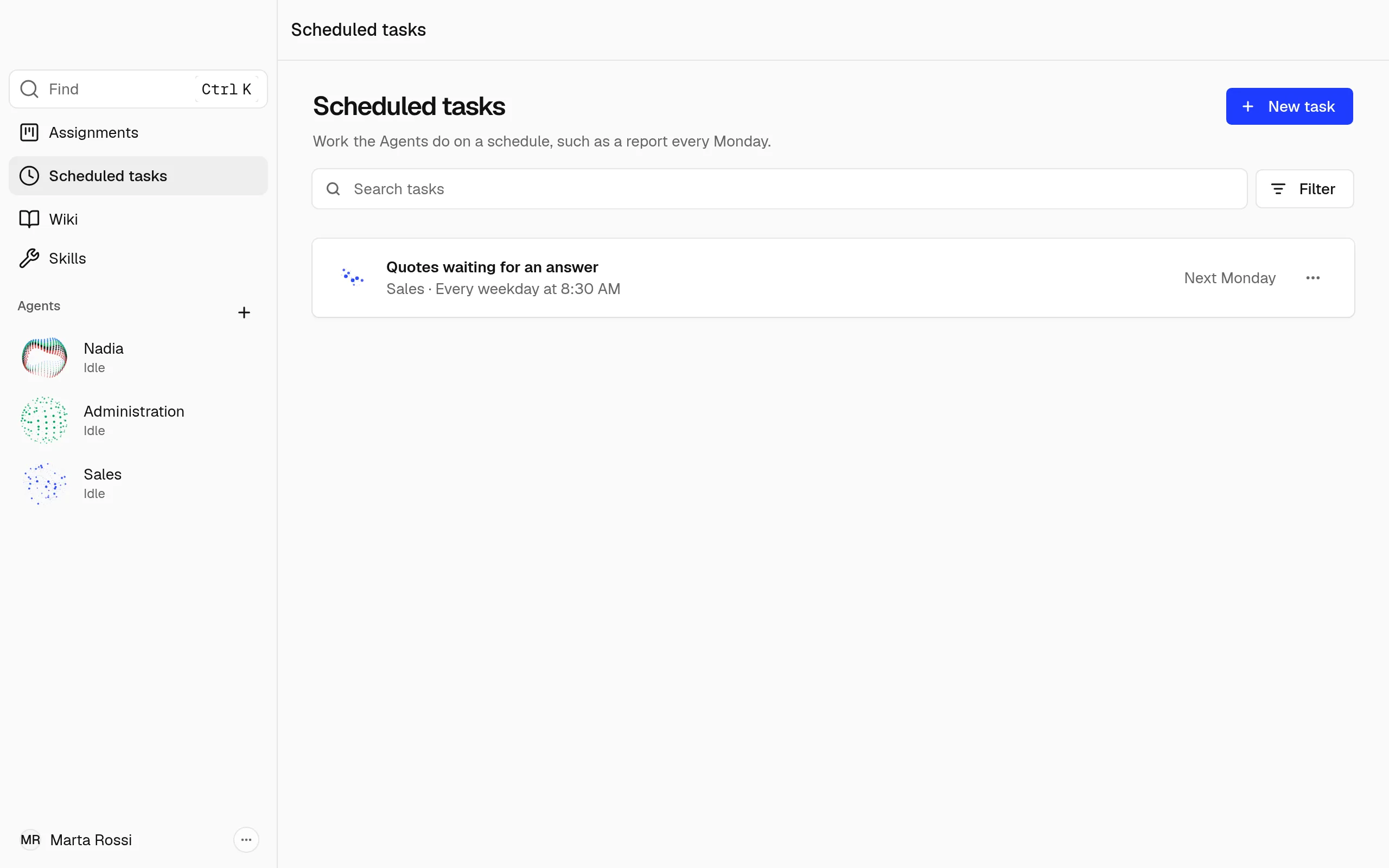
Each row names the Agent and the schedule, and where the task reports when it reports on a Channel. On the right it says when the task runs next or ran last. A task that failed says when. A paused or completed task says so.
Run, pause or change a task
- Open the task's ⋯ menu.
- Choose what to do:
- Run now, to run it at once.
- Pause and Resume.
- Edit: its Name, its Instructions and when it runs, such as Every day or Every weekday.
- Delete: the Agent stops doing this task. This cannot be undone.
Note
A task can follow a schedule the form has no choice for. The window then says On its own schedule, and you ask the Agent in a chat to change it.
Read a task's results
- Under a task that has run, open Last result to see what its last run gave.
- Choose Open the run to see that run's steps, one for each tool the Agent used. A step that needs you says Needs your decision.
An Agent's own tasks are also on her Edit page, under Scheduled tasks.