WhatsApp live calls
Call an Agent on WhatsApp and talk with her, and let her call you.
With the WhatsApp live calls plugin, an Agent has a WhatsApp number of her own. You call that number from your phone and talk with her, and she calls you. Calls are a plugin of their own, apart from the WhatsApp Channel, where people write to her.
Before you start
- A WhatsApp number for the Agent, on a phone with its own WhatsApp account, such as a spare SIM. Never your own number.
- That phone stays on and opens WhatsApp at least every 14 days. Otherwise WhatsApp removes the link.
- Voice chat, which nadicode turns on for your company. Calls need it.
- The plugin, which the company adds to the Agent in the Portal, from the Library. It arrives turned on.
Note
This link is not an official WhatsApp integration, and WhatsApp can restrict a number used this way. Use a number the company can do without.
Link the Agent's WhatsApp
-
Open the Agent's ⋯ menu, choose Edit, then Plugins. Until her WhatsApp is linked, the WhatsApp live calls row shows Not linked.
-
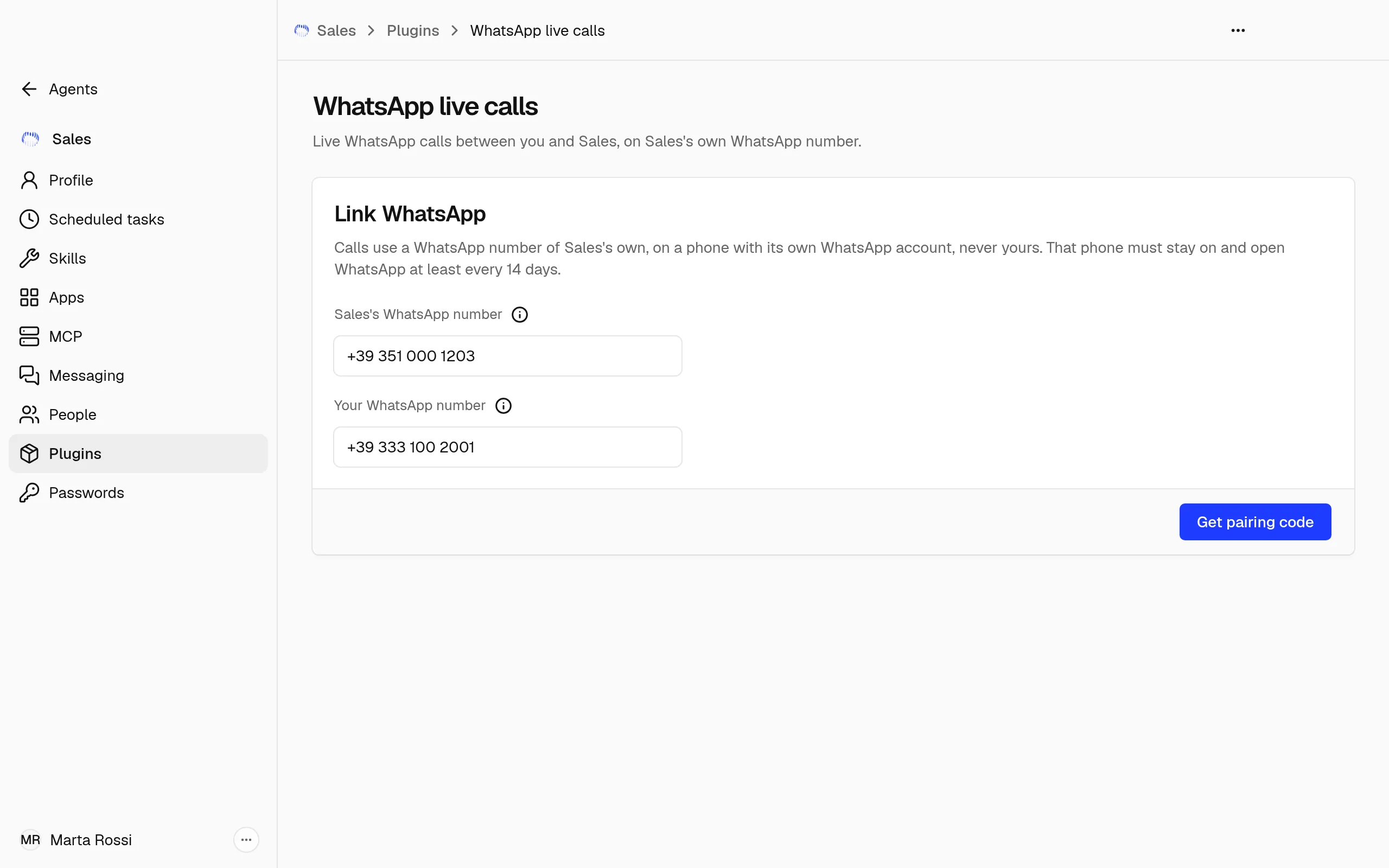
Choose the row. Its page opens on Link WhatsApp.
-
Type the Agent's WhatsApp number and Your WhatsApp number, each with its country code, then choose Get pairing code.
-
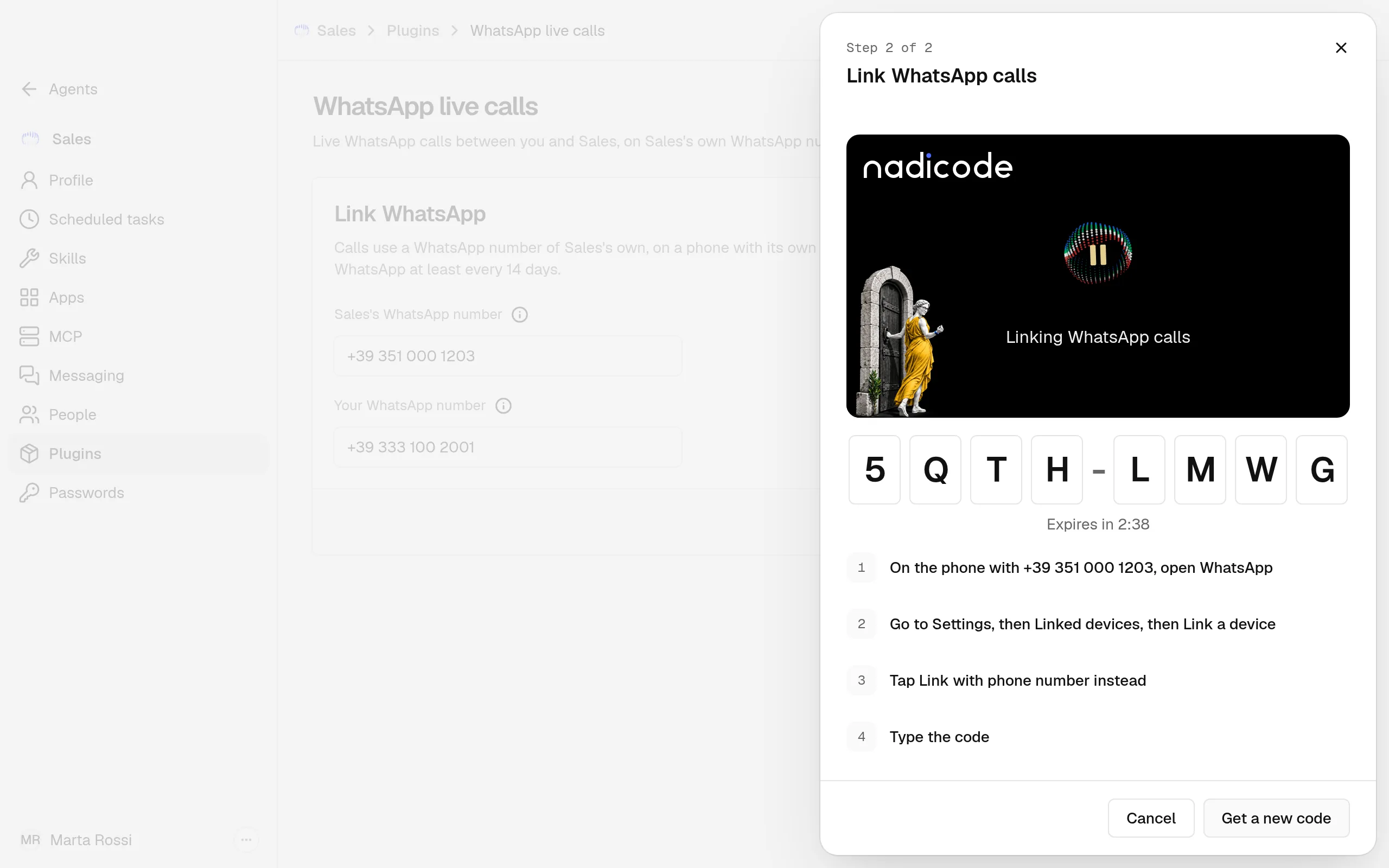
The panel Link WhatsApp calls shows a pairing code and the time left before it expires. The first time, it shows Starting WhatsApp calls while Nadia starts calls for the Agent.
-
On the phone with the Agent's number, open WhatsApp, go to Settings, then Linked devices, then Link a device. Tap Link with phone number instead, and type the code before it expires.
-
The panel shows Linked. Choose Done.
If the code expires first, the panel shows Code expired. Choose Get a new code and type the new code. If WhatsApp gives no code, for example when the Agent's number is not on WhatsApp, the panel shows WhatsApp didn't give a pairing code: check the number, then choose Get a new code.
Only you link WhatsApp calls, on this page. When you ask the Agent in a chat, she tells you to open it.
Call the Agent, and let her call you
- Call the Agent's number on WhatsApp from your phone, and talk with her as on any call. When you ask for something that needs her work, she does it during the call and tells you the result.
- She calls you when something matters, or when you ask her to.
- To end the call, say goodbye. She says goodbye and hangs up.
- After each call, she sends you a short summary as a WhatsApp message.
She calls and answers your number only. When anyone else calls her number, her phone rings as usual.
Calls work while Nadia runs and the computer is on, even with Nadia's window closed.
The page once linked
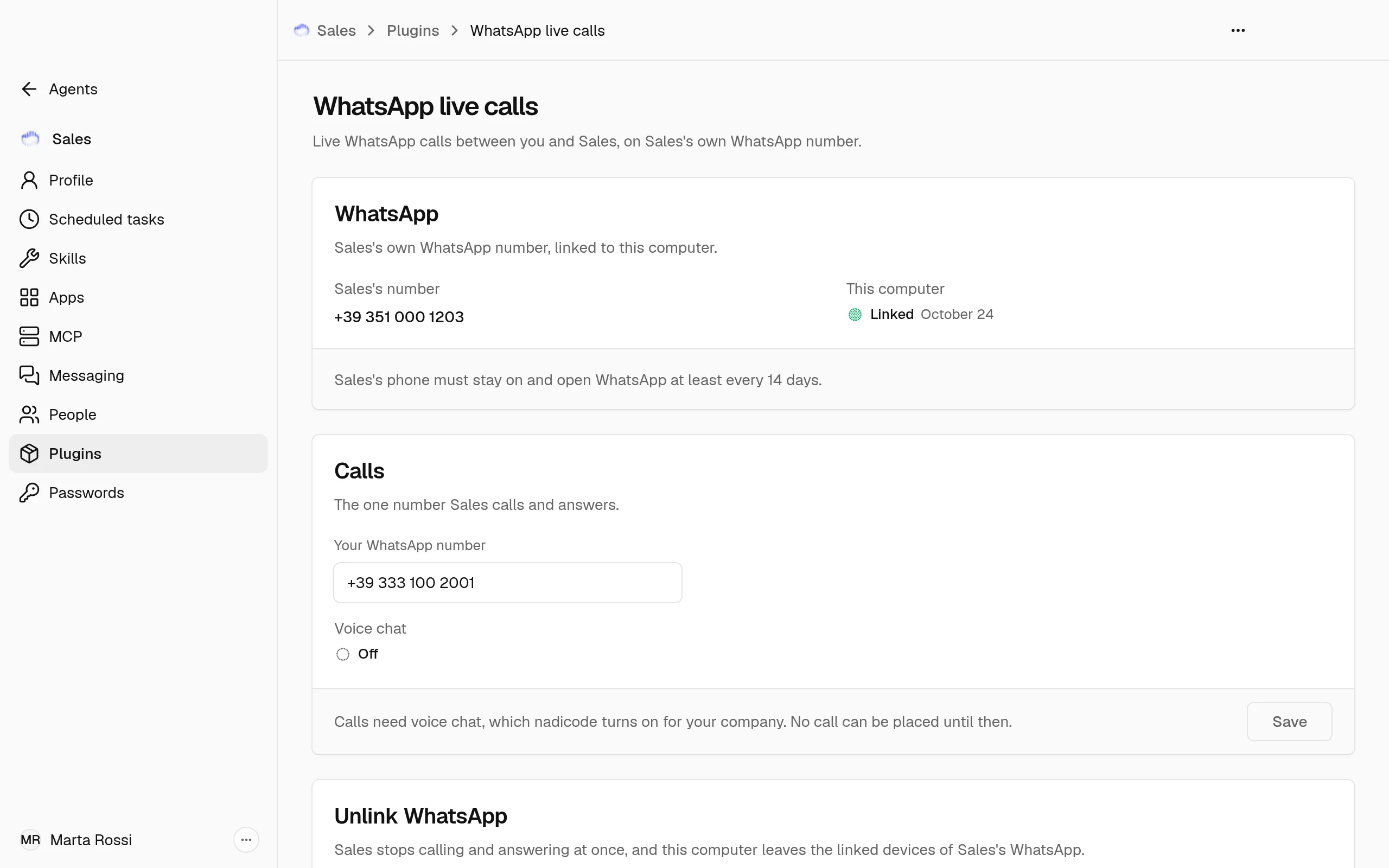
- WhatsApp shows the Agent's number, and This computer shows Linked with the day it was linked, or Connecting while her calls start.
- Calls holds Your WhatsApp number, the one number she calls and answers, and Voice chat, On or Off.
- Unlink WhatsApp takes the link away.
Change your number
- In Calls, type the new number in Your WhatsApp number.
- Choose Save. Nadia confirms Number saved.
From then on she calls and answers the new number only. It cannot be the Agent's own number. During a call the number cannot change: try again when the call ends.
Unlink WhatsApp
- In Unlink WhatsApp, choose Unlink.
- Confirm with Unlink WhatsApp, or choose Keep linked.
She stops calling and answering at once, and this computer leaves the linked devices of her WhatsApp. The page goes back to Link WhatsApp. To give the Agent another number, unlink, then link the new one.
If the phone cannot confirm it, the page says this computer is still a linked device of her WhatsApp. On the phone, open WhatsApp, go to Settings, then Linked devices, and remove it.
When calls stop
- Voice chat shows Off: Calls need voice chat, which nadicode turns on for your company. No call can be placed until then.
- WhatsApp removed this link: the phone with the Agent's number logged this computer out, or WhatsApp was not opened on it for 14 days. The page shows the two numbers again: choose Get pairing code and link again.
- This computer shows Not running: choose Start calls. If it stays Not running, check in Plugins that the plugin is on.
- This computer shows Not working: unlink WhatsApp, then link it again.
- WhatsApp live calls stopped working: link WhatsApp again from the same page.