Nadia's documentation
How to work with Nadia's window, her Agents, Alveare and the Portal, in the words each window shows.
Nadia runs your company's Agents on the Installation: Nadia on a computer at your company, with her Agents and the services they share. Her window is where your people set up the Agents and try them out; everywhere else they reach the Agents on their Channels and in Alveare, your company's work chat.
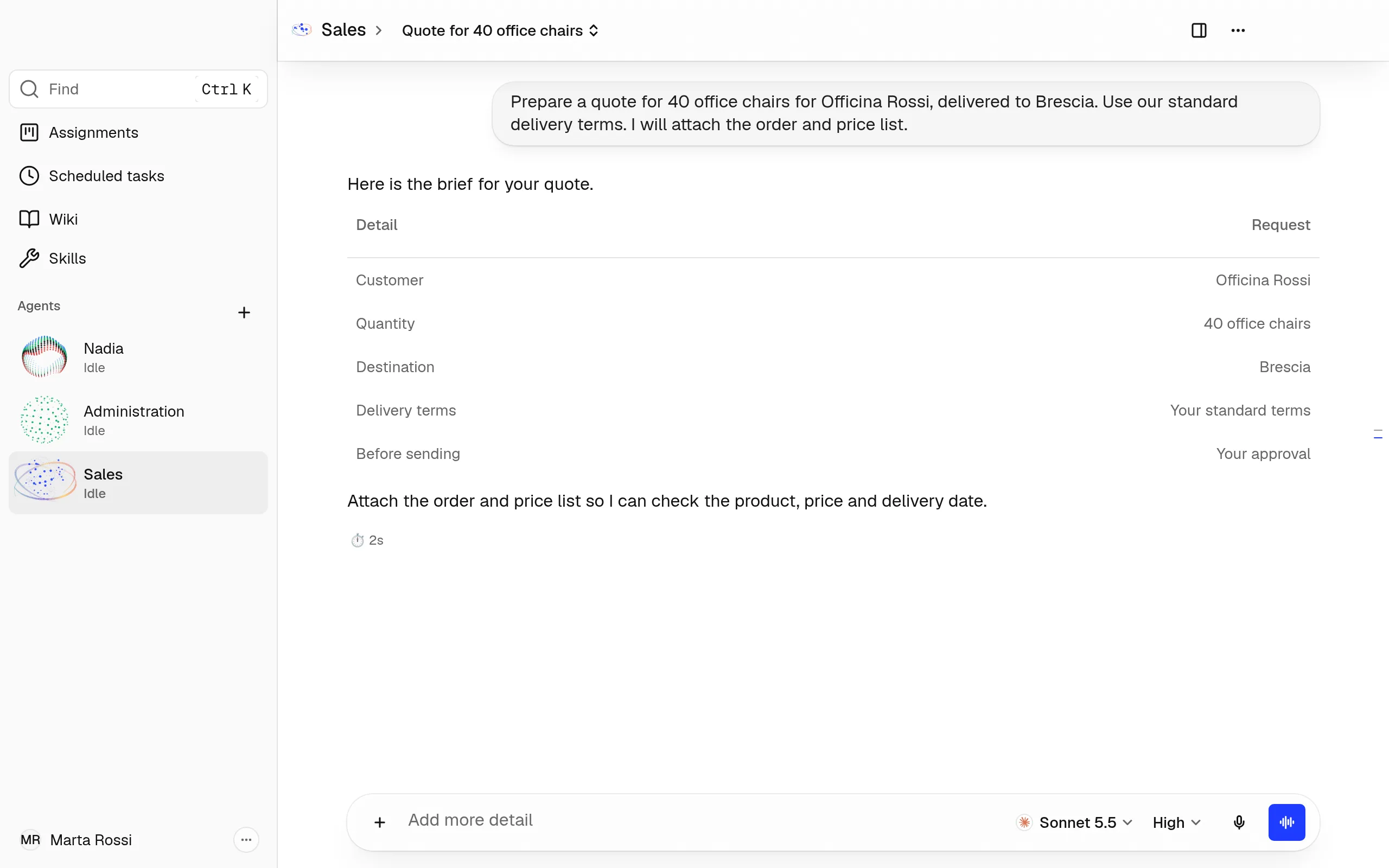
Get started in three steps
- Install Nadia and sign in on the computer that stays at the company.
- Make an Agent for a job, with Nadia, from an Agent template or by yourself.
- Give her work in a chat, by writing or by voice.
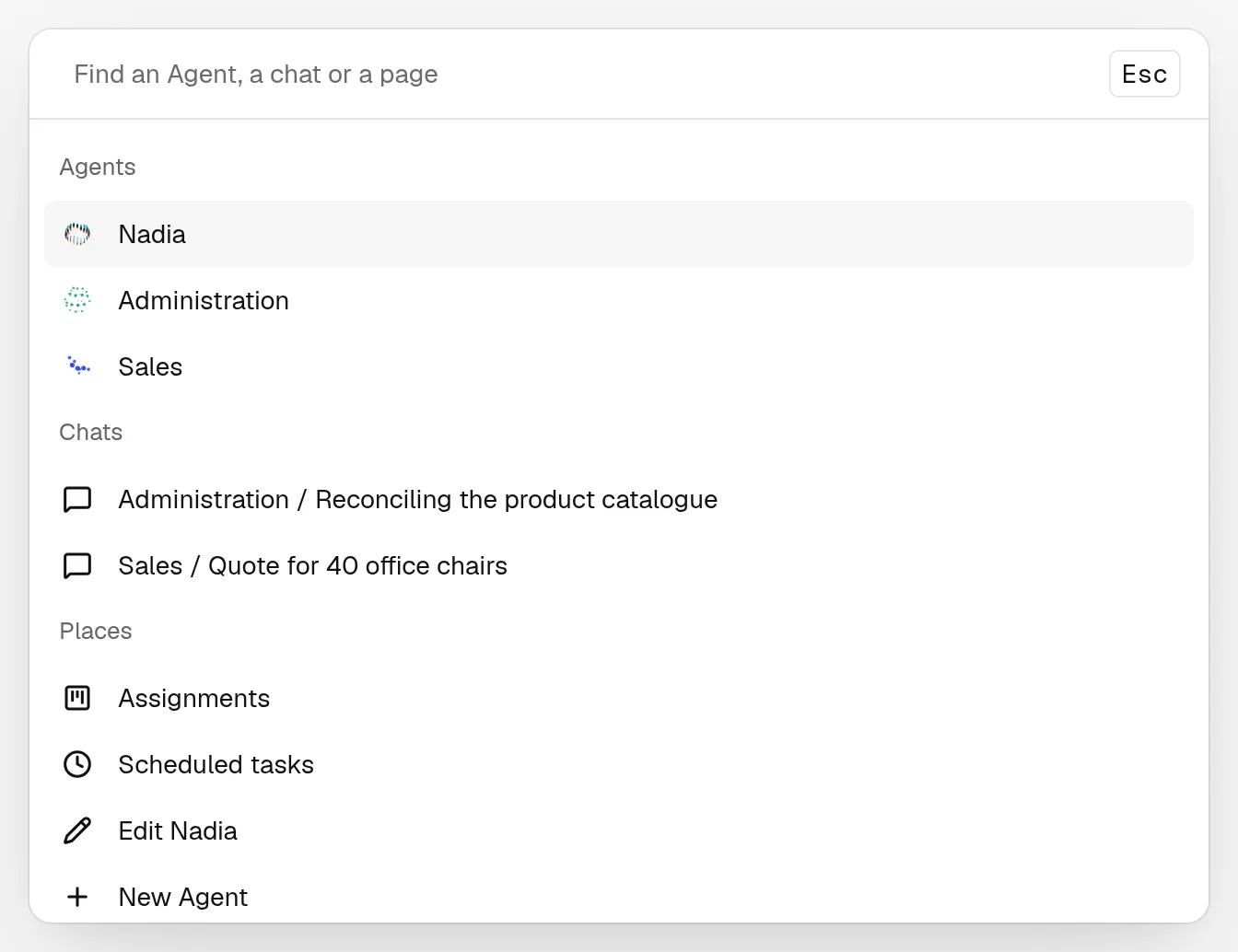
Find an Agent, a chat or a page
-
Press ⌘K on a Mac, Ctrl+K on Windows, or click Find.
-
Type in the box that says Find an Agent, a chat or a page.
-
Choose a result.
Find lists the Agents and their chats, Assignments, Scheduled tasks, New Agent, the company's Wiki and Skills, and each page of Settings but Uninstall Nadia.
Open an Agent
The list on the left is headed Agents. At the top are Find, Assignments, Scheduled tasks, Wiki and Skills. The + beside the heading is New Agent. Below, one row per Agent, with her orb, her name and what she is doing, such as Working or Needs you.
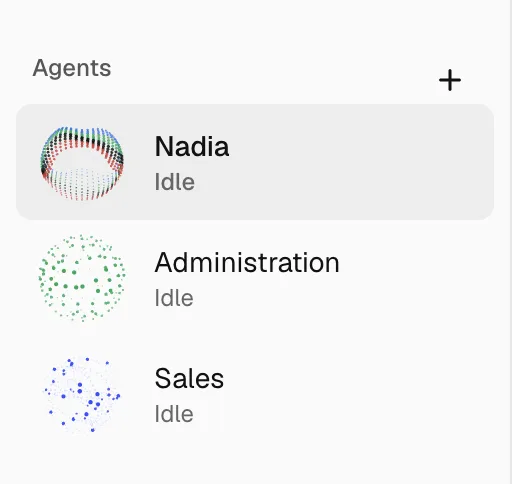
- Click an Agent's row. Her main chat opens.
- To open her menu, right-click her row, or click the ⋯ in the header of her chat. It holds Edit, New chat, Open in Portal, and Delete with her name.
For Nadia, Delete cannot be chosen: Nadia is the company's main Agent and stays.
Go back
On a chat, the header shows the Agent's orb and name, then the chat on screen. On Edit, Settings and the steps of New Agent, it shows the path instead, such as Nadia › Edit. Click a name in the path, or press Esc, to go back.
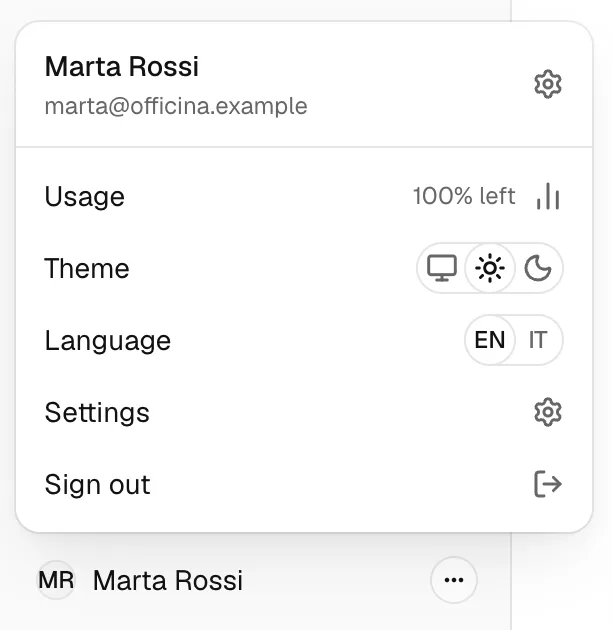
Open the account menu
Click your picture and name at the foot of the Agents list. The menu holds Usage, Theme, Language, Settings and Sign out.
The pages
Each page below covers one part of the window.
Get started
Agents
Agents and New Agent
Who the Agents are, and how to make a new one with Nadia or by yourself.
Editing an Agent
Change an Agent's profile, her Instructions, the models of her own jobs and when the app stops her to ask you before a command.
Chats and voice
Give an Agent work in a chat, by writing or by voice, and watch what she opens beside it.
Skills and plugins
What an Agent knows how to do: her own skills, the company's skills, and the plugins that bring more.
Memory
What the Agents remember about the people they work with, and how to change or remove it.
Connect
Apps and MCP
Let an Agent work in your apps, such as Gmail or Notion, and give her more tools through MCP servers.
Channels
Let people write to an Agent on Telegram, WhatsApp, Slack, Discord or Microsoft Teams.
WhatsApp live calls
Call an Agent on WhatsApp and talk with her, and let her call you.
Passwords
Give an Agent a login, a card, an address or a key, without writing it in a chat.
Alveare
Alveare
Your company's work chat, where colleagues and the Agents work in the same channels, and Alveare Server, which runs it at your company.
Alveare Server
Install Alveare Server on the company's computer, set up your company's workspace, invite your colleagues and keep the workspace running.
Join Alveare
Install Alveare on a computer or an iPhone, join your company's workspace with the invite link, and work with colleagues and the Agents in its channels.
Nadia's Agents in Alveare
Let the Agents on this Nadia join your company's Alveare, allow them on Alveare Server, and see each Agent's state.
Work
Assignments
See which Agent is doing which piece of work: what waits, what an Agent is working on, what needs you and what is done.
Scheduled tasks
See, run and change the work the Agents do on a schedule, such as a report every Monday.
The company wiki
Give the Agents the company's documents to learn from, and see what they learned.
Record a procedure
Show an Agent a procedure on a website once, and she turns it into a skill she repeats.