Channels
Let people write to an Agent on Telegram, WhatsApp, Slack, Discord or Microsoft Teams.
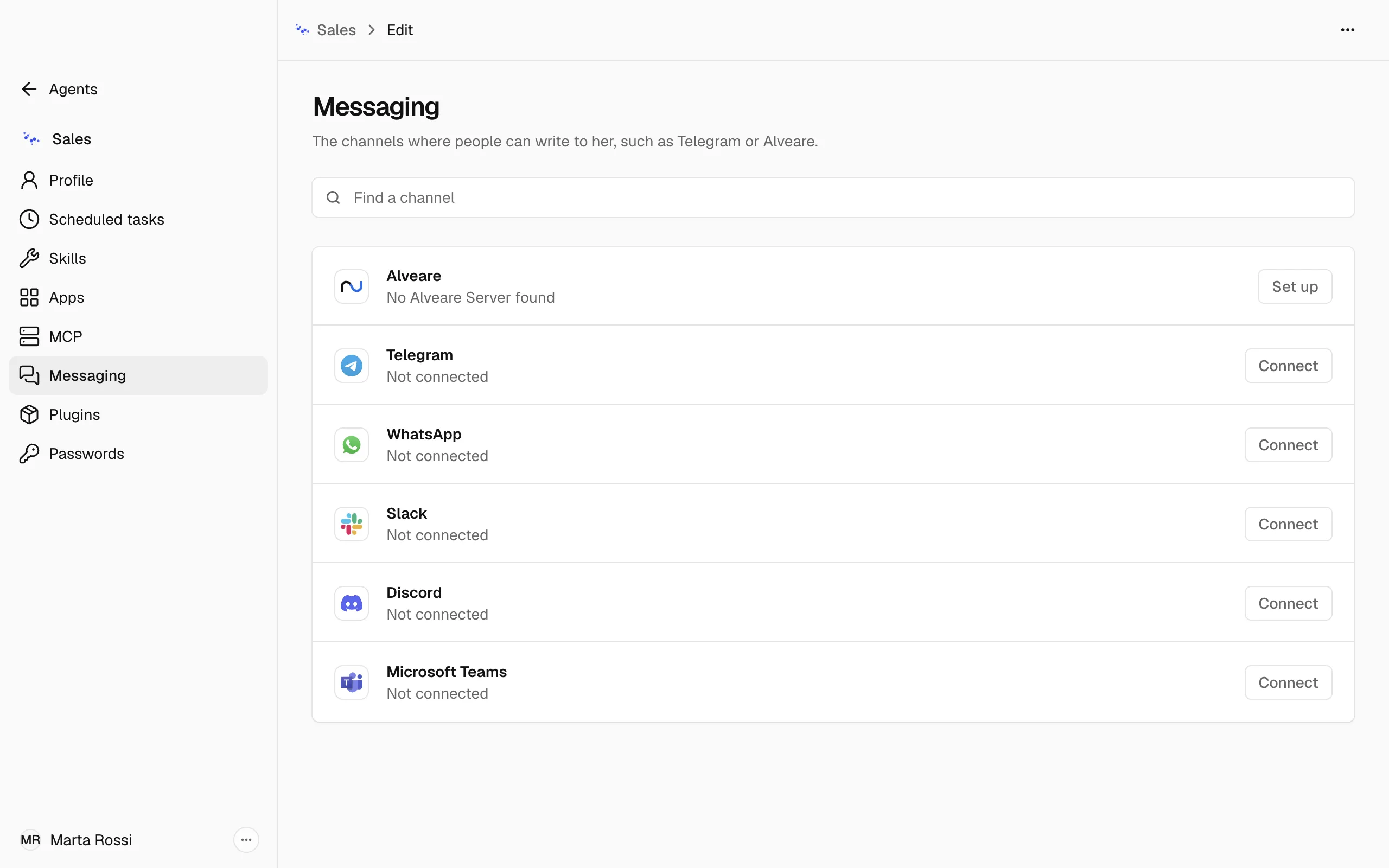
A Channel is a service where people write to an Agent, such as Telegram. Each Agent has her own Channels, set up in the Messaging section of her Edit page.
Connect Telegram
-
Open the Agent menu, choose Edit, then Messaging.
-
On Telegram, choose Connect, then Create with QR code.
-
Point your phone's camera at the code, then confirm in Telegram. Nadia creates the bot for you, with no token to copy.
-
Under Who can write to the Agent, add the Telegram user IDs of the people you allow. An ID is numbers only. Your own ID is added when Telegram shares it.
-
Choose Connect.
To use a bot you already made, choose Use a bot token instead and paste the whole token BotFather gave you.
Connect WhatsApp
- On WhatsApp, choose Connect. The first time, Nadia prepares WhatsApp on this computer, which can take a few minutes.
- On the phone, open WhatsApp, go to Linked devices and scan the code.
- Nadia waits for the phone. When it is linked, the Channel shows Connected.
To talk with an Agent by voice on WhatsApp, calls are a plugin of their own, on a WhatsApp number of hers: see WhatsApp live calls.
Connect Slack, Discord or Microsoft Teams
- On Slack, Discord or Microsoft Teams, choose Connect. Its form opens in the row.
- Open the link in the form. It takes you to the page of the service where the keys are made.
- Copy the values the form asks for. Slack asks for a Bot token, which starts with xoxb-, and an App token, which starts with xapp-. Discord asks for a Bot token. Microsoft Teams asks for the Application (client) ID, the Client secret and the Directory (tenant) ID, and the form lists the steps in the Azure portal that lead to them.
- Add the people who can write to the Agent, then choose Connect.
In Edit channel, a saved key shows Saved. To replace it, type a new value.
Who can write to an Agent
- On each Channel, People who can write lists the people who reach the Agent without asking. To change the list, open the Channel's ⋯ menu and choose Edit channel.
- When someone new writes, a request appears in the Agent's People section, under Waiting for approval, with Approve. A request you do not approve expires on its own.
- Remove access, in a person's ⋯ menu in People, takes their access away until you approve them again.
Pause, change or disconnect a Channel
A connected Channel has a ⋯ menu with Edit channel, Pause and Disconnect. A paused Channel shows Paused and a Turn back on button. After you disconnect a Channel, people can no longer reach the Agent there.
What a Channel's state means
- Not connected: nobody can write to the Agent there yet. Choose Connect.
- Connected: the Channel answers.
- Not answering: the Channel stopped answering. Choose Connect again.
- Restart needed: a change is saved and applies once messaging restarts.
When a Channel stops answering
The Channels answer while Nadia runs and the computer is on, even with Nadia's window closed. Quitting Nadia stops them.
When they stop, Messaging says Messaging is stopped, with Restart.
Note
Restarting messaging restarts it for every Agent, and they stop answering on their Channels for a few seconds.
Alveare is in the same list and has a page of its own: see Nadia's Agents in Alveare.