Editing an Agent
Change an Agent's profile, her Instructions, the models of her own jobs and when the app stops her to ask you before a command.
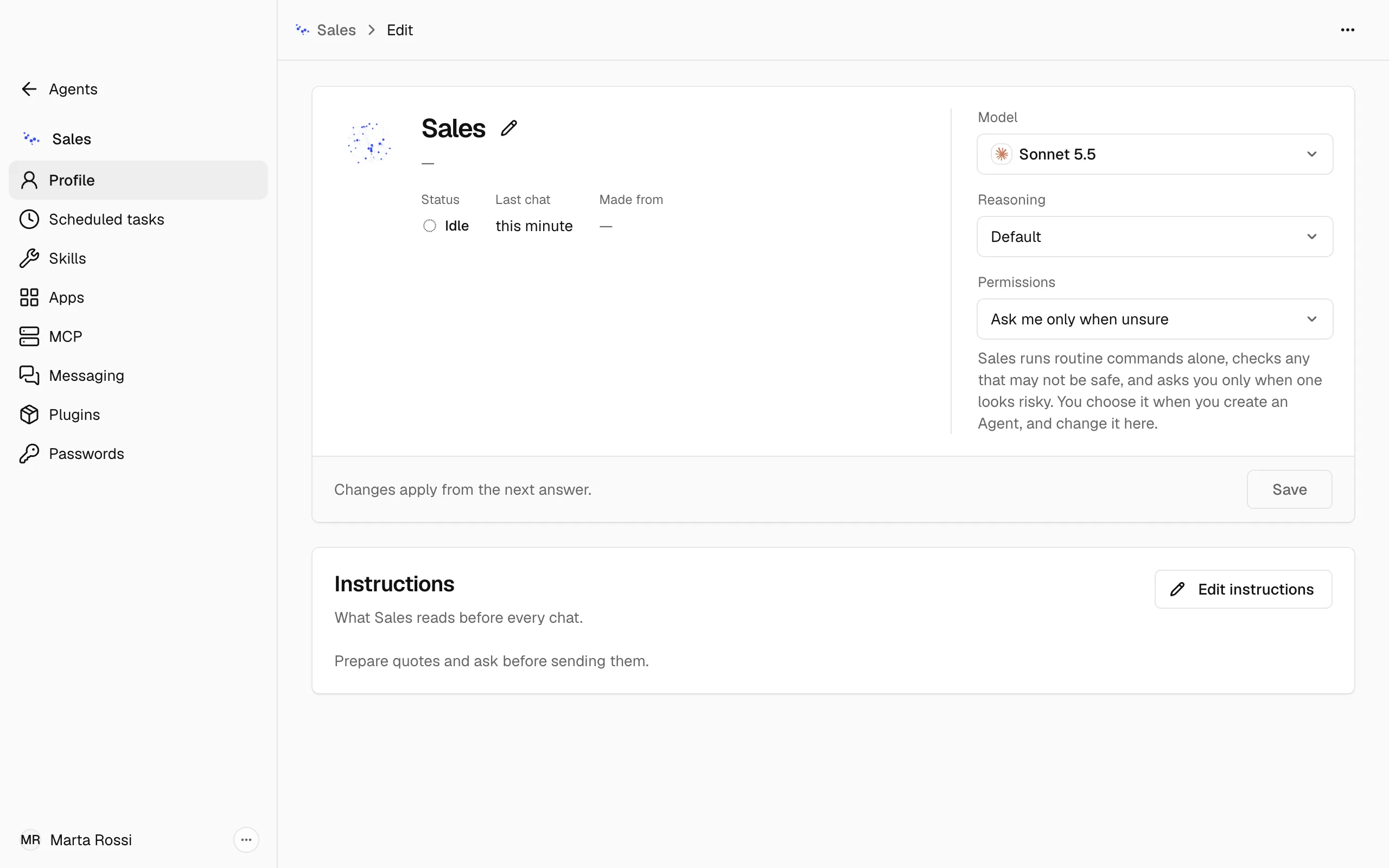
Edit opens an Agent's settings, one section for each: Profile, Scheduled tasks, Skills, Apps, MCP, Messaging, Plugins, Passwords and Advanced. This page covers Profile, where you change her name, her model, her Instructions and her Permissions, and Advanced, where you change the models of her own jobs. The other sections have pages of their own here.
Open an Agent's settings
- In the Agents list, choose the Agent.
- Open her ⋯ menu and choose Edit. The page opens on Profile, with the other sections listed on the left.
Change her name, description or look
- On Profile, choose the pencil, Edit name and description.
- Change her name, her description or her look.
- Choose Save.
Change her model
- Under Model, choose the model she answers with.
- Under Reasoning, choose how much she reasons first.
- Choose Save. Changes apply from the next answer.
Change the models of her own jobs
Besides the model she answers with, an Agent uses other models for jobs of her own, such as naming a chat, reading an image or summarizing a long chat. Nadia chooses each one, and most Agents keep them as they are.
- In her settings, choose Advanced. Auxiliary models lists each job with the model Nadia chose for it.
- Turn on Override beside a job, then choose its model and how much it reasons first.
- Choose Save. Changes apply to chats started after you save.
Turn Override off and save to give the job Nadia's choice again; an update of Nadia can change that choice. Only Nadia has Company wiki, the job that reads the company's documents.
Change her Instructions
- Under the card, Instructions show what she reads before every chat. Choose Edit instructions.
- Write what the Agent is for, how she speaks and what she checks before acting.
- Choose Save. She reads them before every chat, so a change applies from the next one.
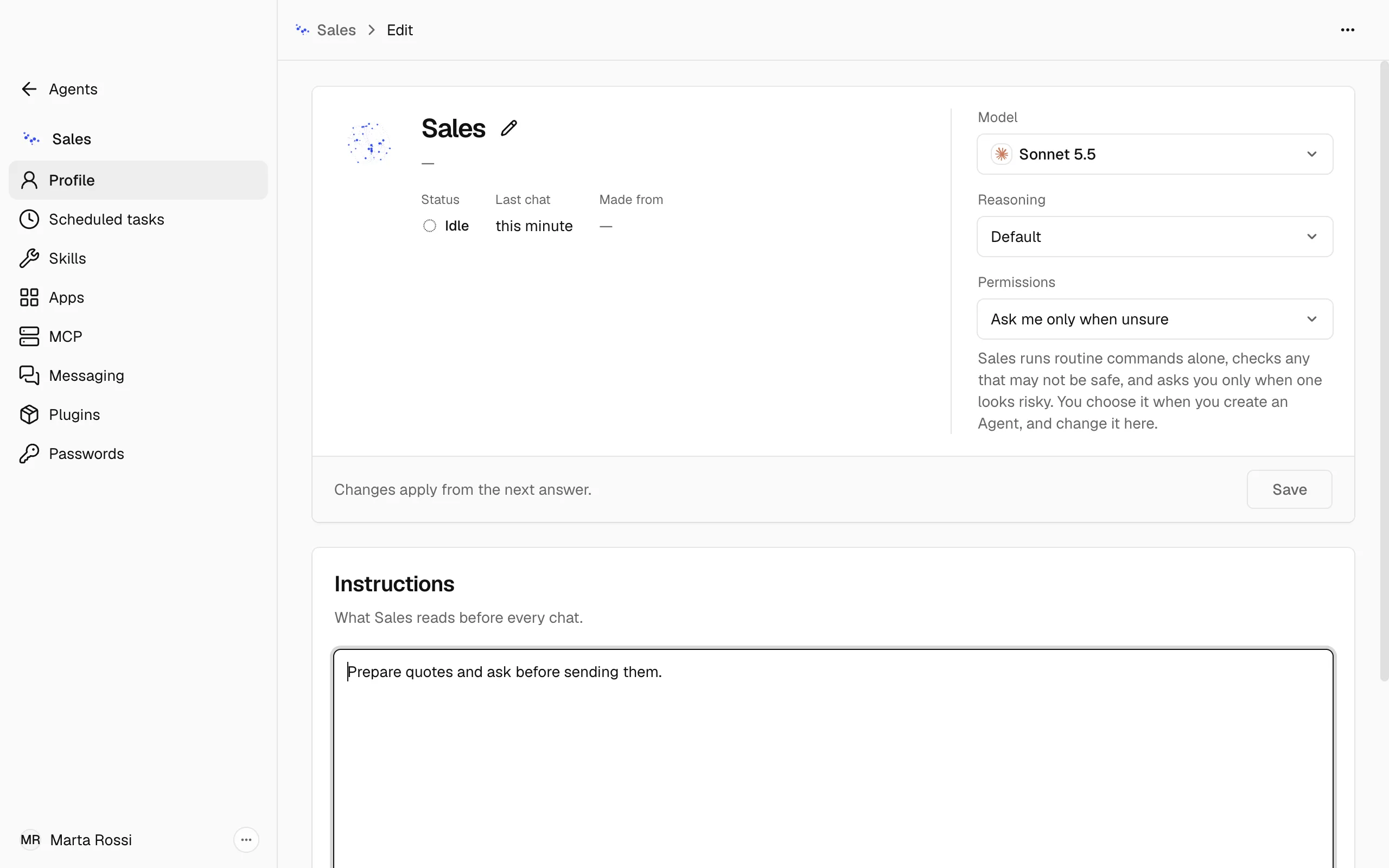
They cannot be saved empty. Nadia's own Instructions come with Nadia. An update renews them only while nobody has changed them, so your changes stay.
Warning
An Agent made from an Agent template takes her Instructions from it, and the template's next update replaces them. Put the company's own details in The company's details when you make her: an update keeps those.
Choose when she asks you first
- On Profile, open Permissions.
- Choose one of the three.
- Choose Save.
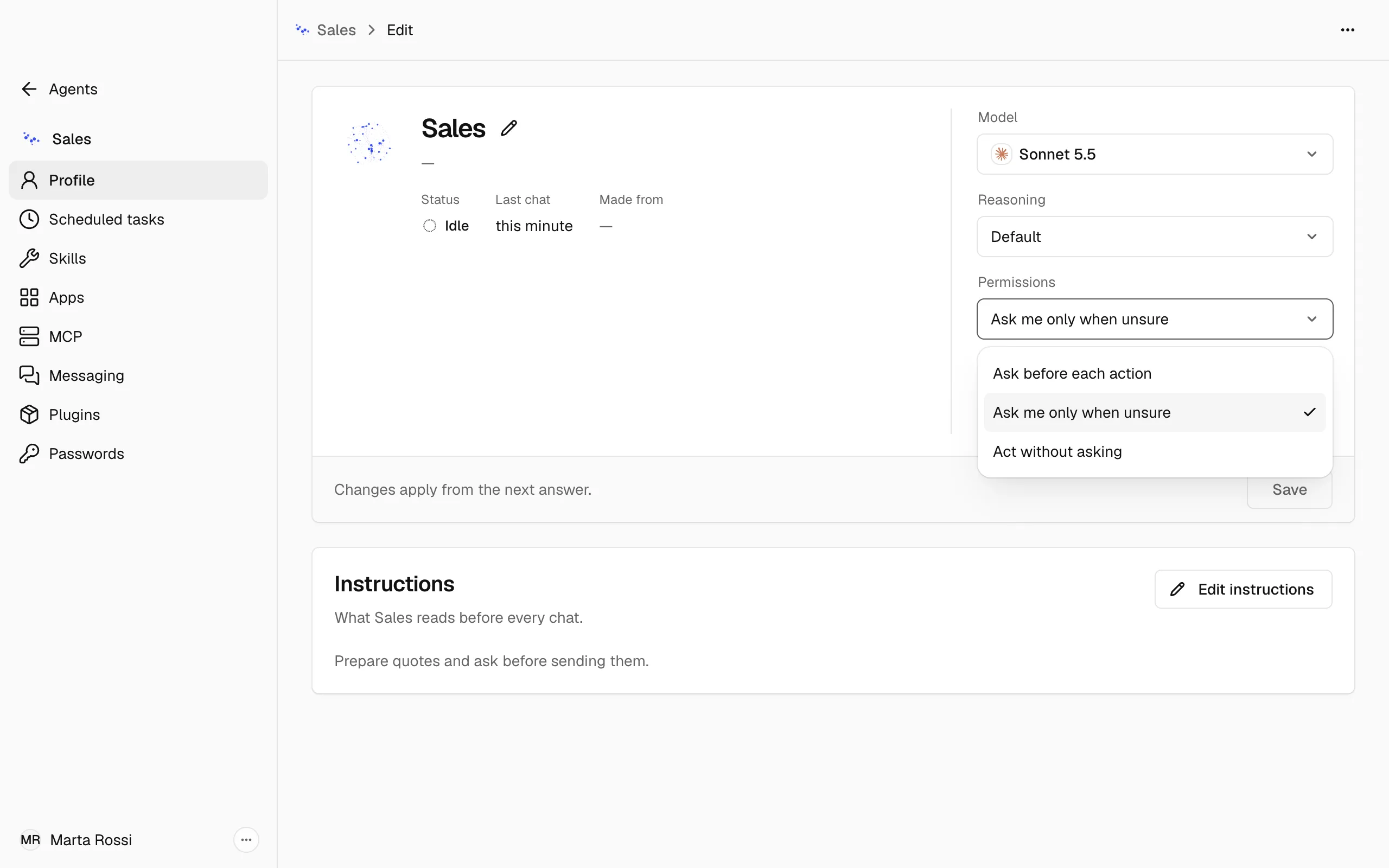
Permissions decide when the app stops an Agent and asks you before a command she runs on the Installation that may not be safe:
- Ask before each action: the app stops her before every such command.
- Ask me only when unsure: a second check lets routine ones through and stops her only for one it judges risky.
- Act without asking: the app does not stop her to ask.
A new Agent starts on Ask me only when unsure unless you choose another in Permissions when you make her. Nadia starts on Act without asking. Only a person changes an Agent's Permissions, here in her Profile.
Whatever her Permissions, the app asks you before she fills a saved card into a page or changes a file that gives an Agent instructions, such as the company's details in her folder. It refuses a few commands that could not be undone, such as erasing a disk.
Note
Where nobody is there to answer, such as in a scheduled task, what the app would ask you is refused.
What else Profile shows
- Status, Last chat and Made from, under her name: what she is doing, when she last chatted, and the Agent template she came from, if any.
- An Agent made from an Agent template also shows Agent template: its name, its version and the skills it brought.