Alveare Server
Install Alveare Server on the company's computer, set up your company's workspace, invite your colleagues and keep the workspace running.
Alveare Server runs your company's workspace on one computer at the company. You set it up once. After that it opens when someone logs in to that computer, and colleagues chat in the workspace from Alveare.
Choose the computer
Install Alveare Server on a computer that stays on at the company, on the office network, often the one Nadia runs on. Colleagues reach the workspace through this computer, so while it is off, or nobody is signed in to it, they cannot use the chat.
- A Mac needs Apple silicon and macOS 13 or later.
- On Windows, Alveare Server uses WSL, a part of Windows. If it is off, Alveare Server offers Turn on WSL, and Windows may restart the computer.
- On Linux, Docker Engine must be installed and running, with Docker Compose 2.24.4 or later, and your account allowed to use it.
Install Alveare Server
- In the Portal, open Downloads.
- Under Alveare Server, choose the download for the computer's system.
- Install Alveare Server on the computer, then open it.
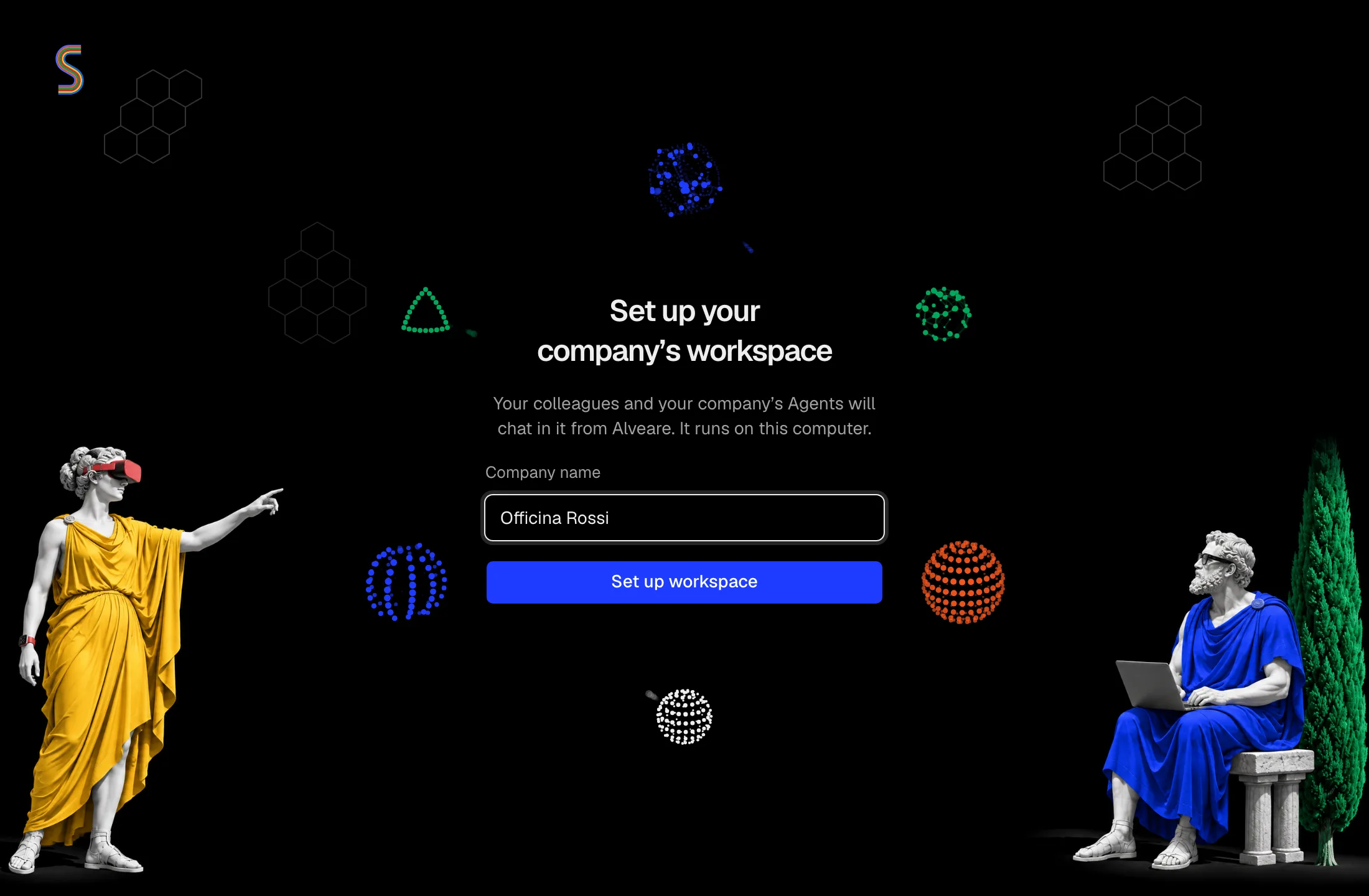
Set up your company's workspace
-
In Company name, type your company's name. Colleagues see it in Alveare.
-
Click Set up workspace.
-
Wait while Alveare Server goes through its steps: Get this computer ready, Start the chat service and Create the workspace. The first setup downloads what the computer needs, once, so keep it on the internet.
-
When it is done, the window shows your company's name with the status Running.
Invite your colleagues
The card Invite colleagues holds the link your colleagues join with. They open it from anywhere: on a computer it opens Alveare, or offers to install it first. On an iPhone they open it on the office Wi-Fi.
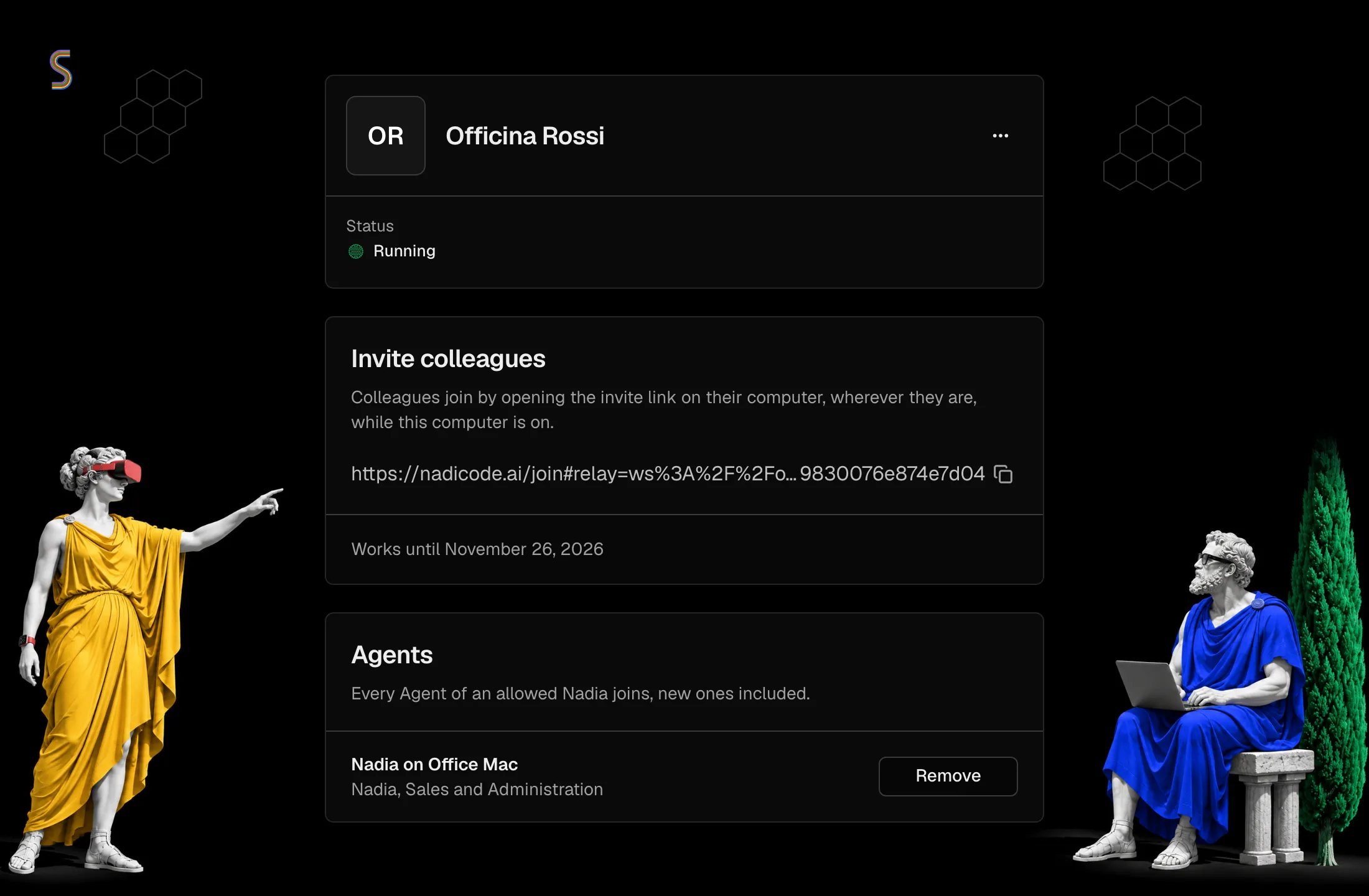
- Click the copy button at the end of the link.
- Send the link to your colleagues, in an email or a message.
- Each colleague pastes it into Alveare and types their name: see Join Alveare.
One link works for every colleague for 30 days, and the card says until when. While the workspace runs, Alveare Server makes a new link a week before the old one stops working, so copy it from the card each time you invite someone. To make one yourself, open the ⋯ beside your company's name and choose Make a new link. When a link has stopped working, the card offers Make a new link in its place.
Let the Agents in
When Nadia asks to join, Alveare Server shows her request with a four-digit code. Check that Nadia shows the same code, then choose Allow. Nadia's Agents in Alveare has every step, and how to remove a Nadia later.
Keep it running
- Closing the window leaves the workspace running. To see the window again, open Alveare Server again, or choose Open Alveare Server from its icon: in the menu bar on a Mac, beside the clock on Windows.
- Quit Alveare Server stops the workspace too, and so do logging out of the computer and turning it off. Alveare Server opens again when someone logs in, and starts the workspace.
- To stop the workspace and keep Alveare Server open, open the ⋯ beside your company's name and choose Stop workspace. It stays stopped, even after the computer restarts, until you choose Start workspace. Everything is kept on the computer.
Warning
While the workspace is stopped, colleagues cannot use the chat and the Agents cannot answer in it.
Update Alveare Server
When a new version is ready, the window says so above Invite colleagues. Click Update. Alveare Server installs it and restarts by itself; colleagues cannot reach the workspace while it restarts, and nothing is lost.
When setup stops
The window says what stopped it and what to do, and Try again carries on from where it stopped. What is done so far is kept.
- This computer needs Docker: install Docker Engine with Docker Compose 2.24.4 or later, or start Docker, then try again.
- This account can’t use Docker: add your account to the docker group, sign out and back in, then open Alveare Server.
- Windows needs WSL turned on: choose Turn on WSL. If Windows asks, restart the computer; setup carries on when Alveare Server opens again.
- Virtualization is off on this computer: turn it on in the computer's BIOS or UEFI settings, then restart the computer.
- This Mac needs a newer macOS: update macOS to version 13 or later.
- What this computer needs for the workspace didn’t download: check the computer's internet connection, then try again.
- This computer isn’t on a network: connect the computer to the office network, then try again.
- Another program uses the port colleagues or Nadia reach the workspace on: close that program or restart the computer, then try again.
- This computer’s disk is full: free up space on the computer, then try again.
- The system keychain is locked: sign in to the computer or unlock the keychain, then try again.
- Another computer on the office network answers to the name colleagues reach the workspace at: turn off or rename that computer, then try again.
- Part of Alveare Server is missing or damaged: download Alveare Server again from the Portal and install it over this one; setup carries on when it opens again.
For any other problem, Copy details copies what happened, for whoever helps you with the computer.
Caution
If the window says This computer holds an earlier workspace, do not set up again: that would lock the earlier workspace's messages out. Contact nadicode.
Alveare
Your company's work chat, where colleagues and the Agents work in the same channels, and Alveare Server, which runs it at your company.
Join Alveare
Install Alveare on a computer or an iPhone, join your company's workspace with the invite link, and work with colleagues and the Agents in its channels.