Start and sign in
Install Nadia on the company's computer, sign in once, and keep the Agents answering.
Nadia runs on one computer that stays at the company. This page takes you from the download to a signed-in window, and shows what keeps the Agents answering.
Install Nadia
- In the Portal, open Downloads.
- Choose the download for the computer's system, a Mac or a Windows computer.
- Install Nadia on the computer that stays at the company, then open her.
Nadia there, with her Agents and the services they share, is the Installation. Nadia opens when you log in to the computer and keeps running with her window closed, so the Agents keep answering on their Channels while the computer is on.
Warning
Quitting Nadia stops every Agent until you open Nadia again.
Sign in
-
Wait while Nadia starts. Her first screen shows Starting Nadia, Loading your tools and Checking your account.
-
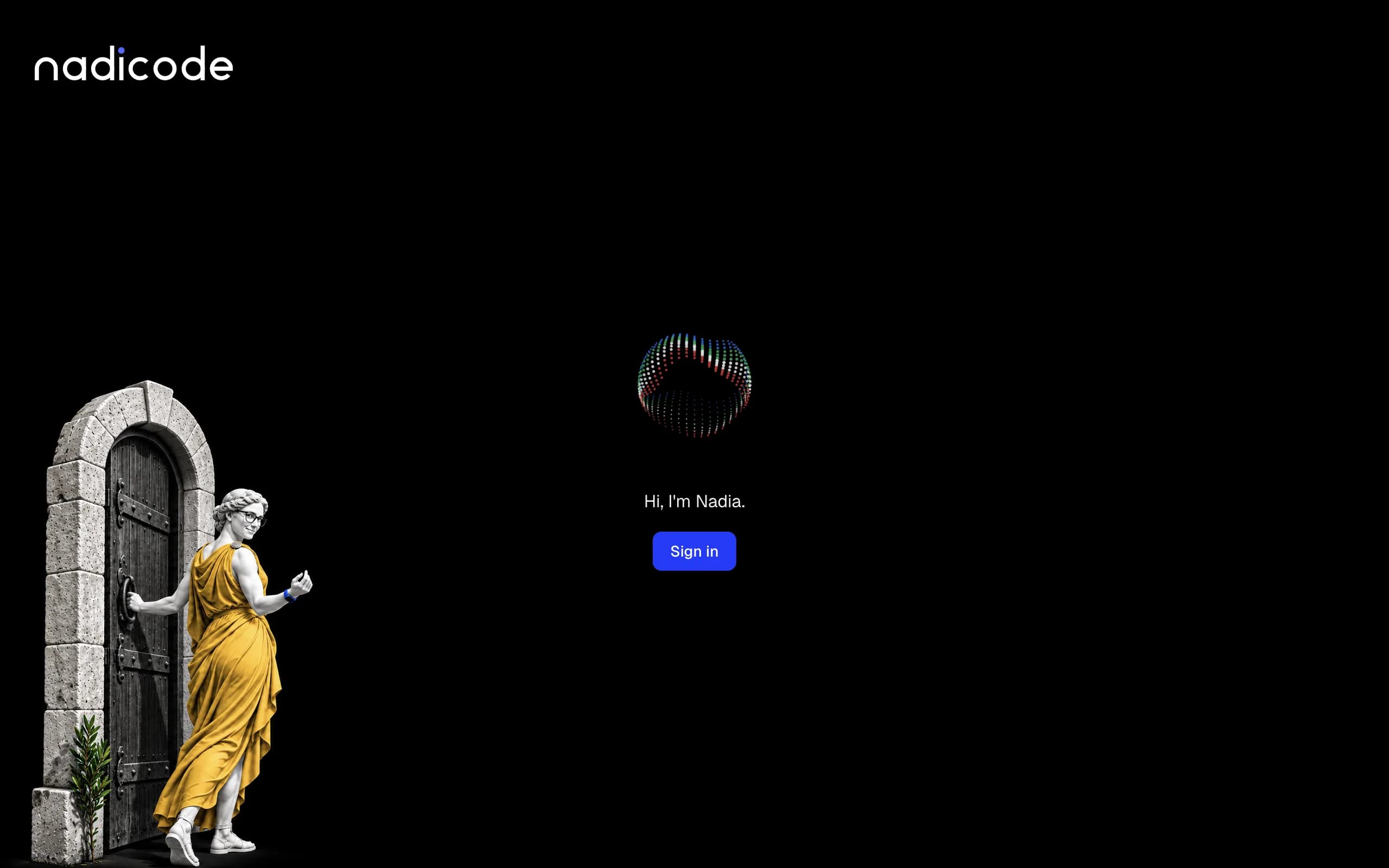
When the screen greets you with Hi, I'm Nadia., click Sign in.
-
Your browser opens. Sign in there with your nadicode account, with the six-digit code nadicode emails you or with your passkey: Complete sign-in in your browser.
-
If you closed the browser, click Open browser to open it again.
-
When the sign-in is done, the first screen gives way to Nadia's window.
Sign out
-
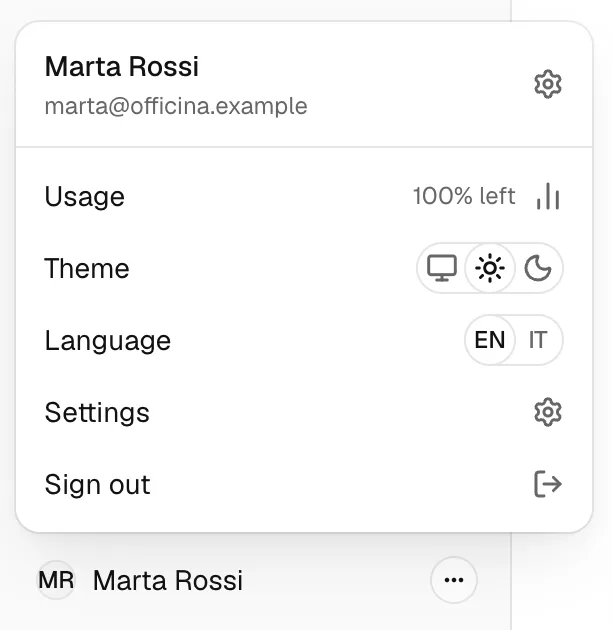
Click your picture and name at the foot of the Agents list.
-
Choose Sign out.
Sign out removes this Installation's sign-in to the Portal. The Agents keep their access to the AI models, so they keep answering.
Keep the Agents answering
The Agents answer on their Channels only while the computer is on and awake.
-
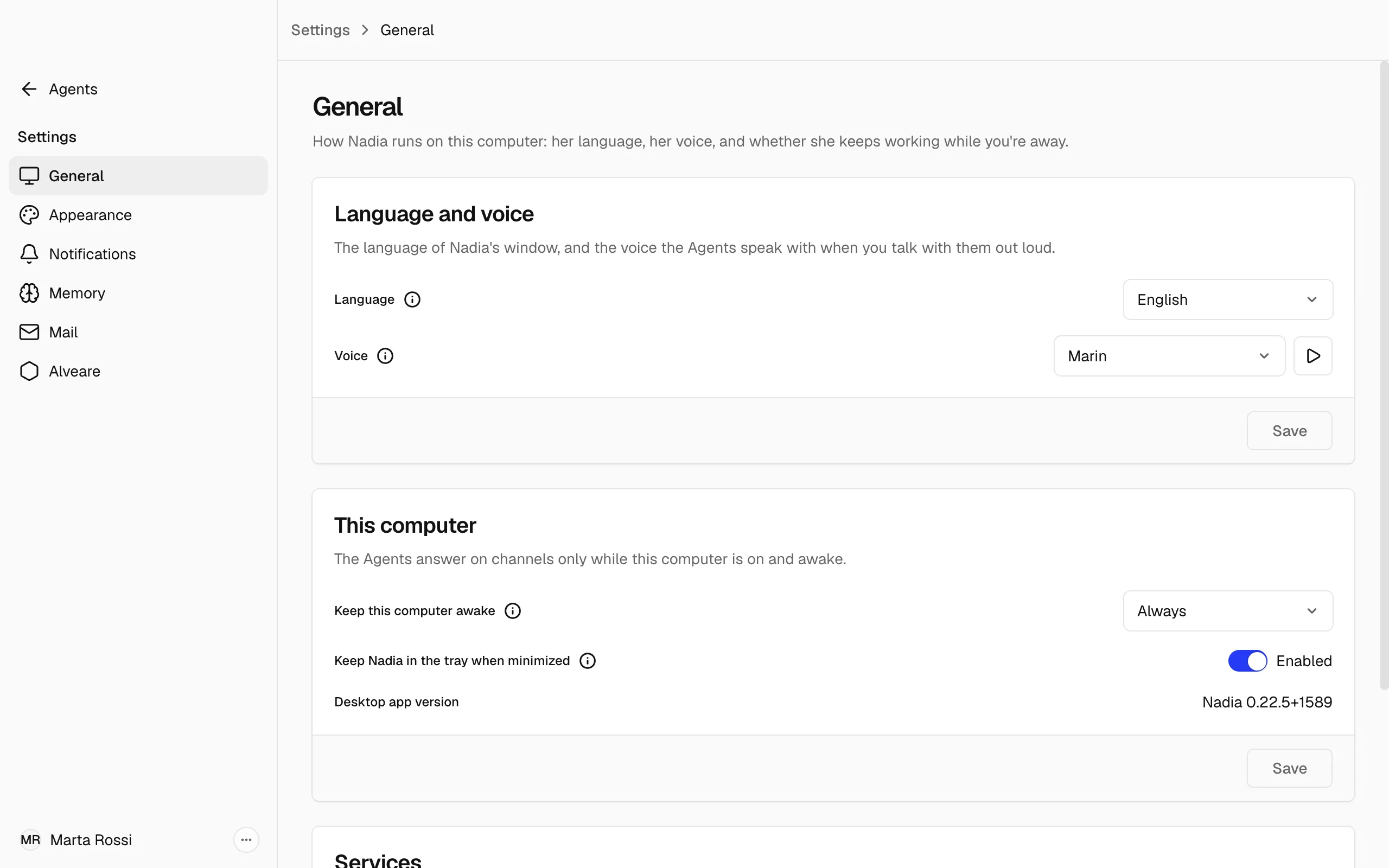
In the account menu, choose Settings, then General.
-
Under Keep this computer awake, choose Always or While an Agent is working.
-
Click Save.
Keep this computer awake stops the computer from going to sleep. Always does it at all times, and While an Agent is working only during a reply. Never does not keep it awake. The screen can still turn off.