Settings and Repair
What you set for the whole Installation, and what to do when one of Nadia's services stops.
Settings holds what you choose for Nadia on this computer, and shows whether her services are running.
Open Settings
- Open the account menu: the ⋯ button beside your name, at the bottom of the Agents list.
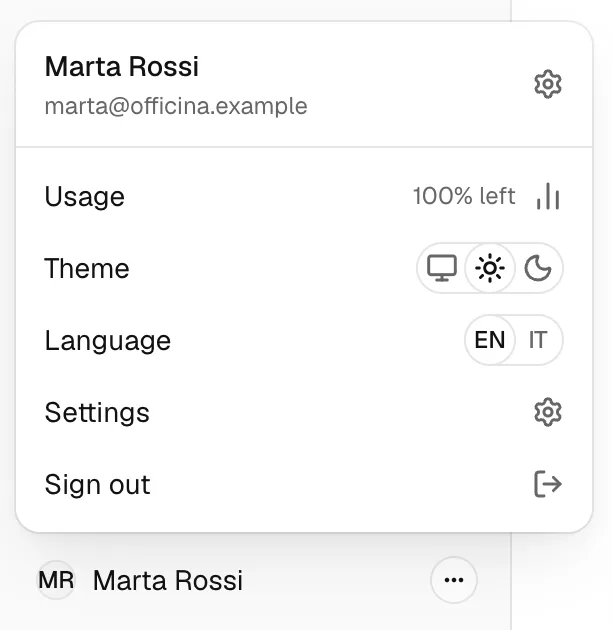
- Choose Settings.
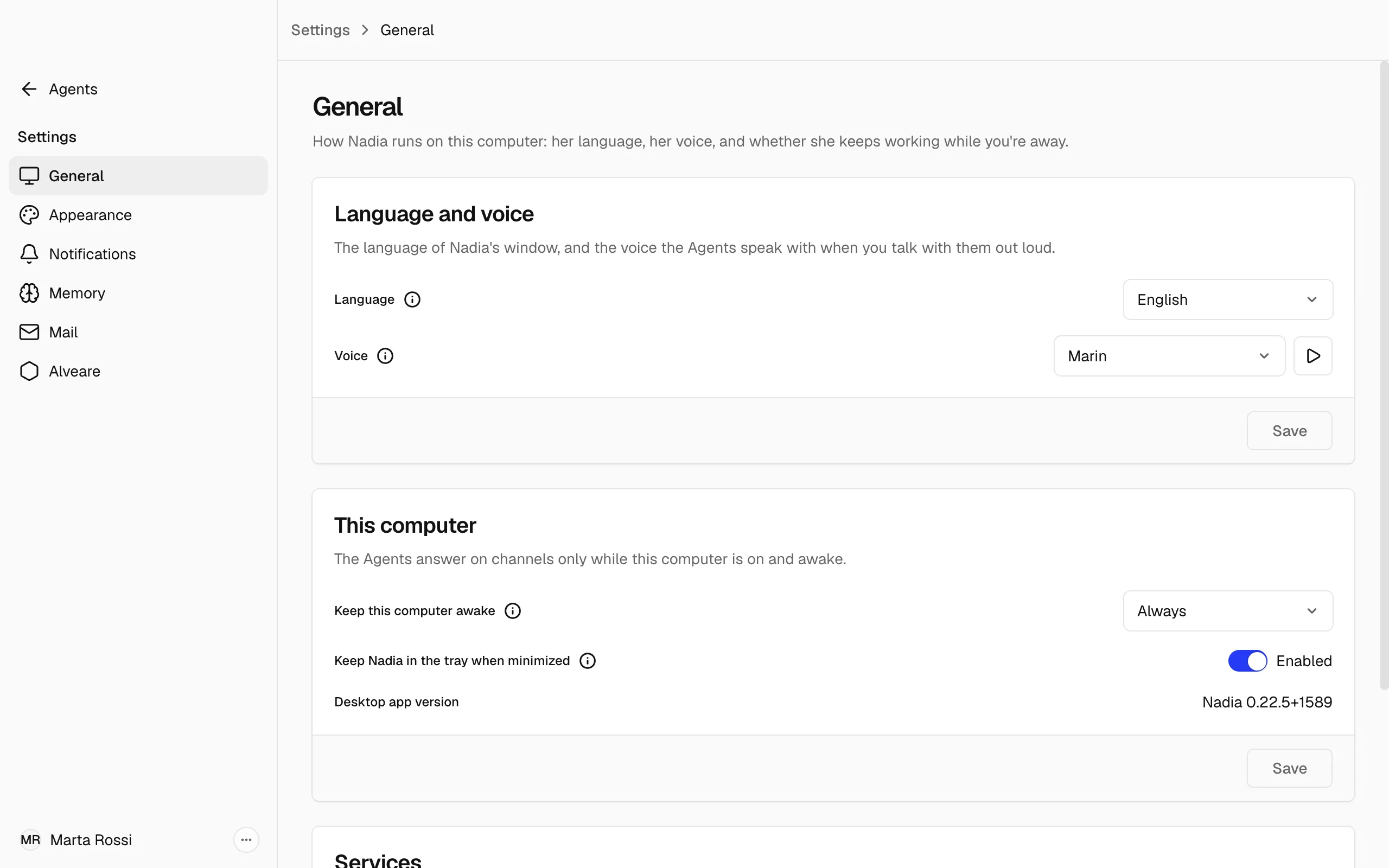
You can also open Settings from Find. Its sections are on the left: General, Appearance, Notifications, Memory, Mail and Alveare.
Note
Each card has its own Save. A change is kept when you press the Save of its card.
Change the language and the voice
- In Settings, open General.
- In the Language and voice card, choose a language. It is the language of Nadia's window, and the language the Agents speak in a voice chat.
- Choose a Voice. Each voice greets you as you choose it, in that language; the play button beside it plays it again.
- Press Save.
Every Agent speaks with the new voice from the next voice chat you start. The account menu has a Language switch too.
Keep the computer awake
- In Settings, open General.
- In This computer, choose Keep this computer awake: Never, While an Agent is working or Always.
- Press Save.
With While an Agent is working, the computer stays awake only during a reply.
Note
The Agents answer on channels only while this computer is on and awake. The screen can still turn off.
On Windows, Keep Nadia in the tray when minimized makes the window leave the taskbar while Nadia keeps running.
Fix a service that stopped
Nadia runs three programs on this computer for the Agents: Connection to the AI model, Database and Memory server.
- In Settings, open General and find the Services card.
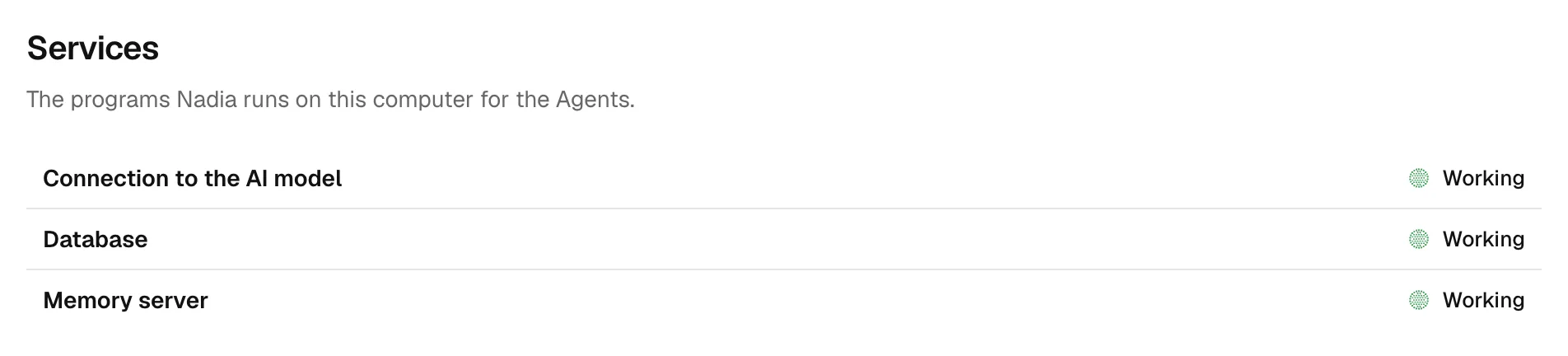
- Read each row: Working, Starting or Not working. A service that is not working shows the reason.
- Press Repair. It starts the service again now.
If the reason says another program on this computer is using the service's connection, close that program or restart the computer first, then press Repair.
Without the memory server the Agents still answer, but remember nothing new.
Tip
While Nadia's window is open, she checks once a minute and starts a stopped service again. Repair does it now.
Choose how Nadia looks
- In Settings, open Appearance.
- Change Theme or Text size. The theme is Light, Dark or System, which follows your computer's light or dark setting.
- In the Chats card, switch on Show reasoning to see how an Agent thinks a request through before she answers, or Show tool use to see the searches, commands and files she uses for a reply.
- Press Save in the card you changed.
File edits and questions for you always show in a chat.
Choose what Nadia tells you
Notifications reach you outside the window, when an Agent needs you or has finished.
- In Settings, open Notifications.
- Switch on Show notifications. It turns every notification below on or off at once.
- Switch on the ones you want: An Agent asks before acting, An Agent is waiting for your answer, A reply is ready and A reply didn't finish.
- Press Save.
The Sound card has its own switch, Play a sound when a reply is ready. Nadia plays it from the window, also when notifications are off.
Add a mailbox
- In Settings, open Mail.
- Choose Add mailbox.
- Choose the Provider, such as Aruba PEC, Legalmail, Poste Italiane or Register.it PEC. For any other, choose Another mail server (IMAP) and type its Incoming mail (IMAP) and Outgoing mail (SMTP) servers, with port and encryption.
- Type the Address, the Username and the Password. Leave the username empty to sign in with the address.
- Press Save. Nadia checks that the mailbox connects before she saves it.
Note
Every Agent on this computer can read and send this mailbox's mail.
Each mailbox's ⋯ menu has Edit and Remove. After you remove a mailbox, no Agent can read or send its mail. The mail stays with the provider.
A Gmail or Outlook account is not added here. It is connected as an app, as Apps and MCP explains.
Remove Nadia from a computer
Nadia does not remove herself. Use the computer's own tools:
- On a Mac: quit Nadia, then drag Nadia from Applications to the Trash.
- On Windows: open Apps settings, find Nadia under Installed apps and choose Uninstall.
- On Linux: quit Nadia, then delete the Nadia AppImage from the folder where you saved it.
Removing Nadia does not delete the Agents and their data.
Memory and Alveare
These Settings sections have pages of their own: Memory and Alveare. Updates says how Nadia updates.