Account, usage and billing
Where your company's account, its model usage and its billing live, and what happens when the usage runs out.
Your company's account lives in the Portal, at portal.nadicode.ai. Nadia's window shows how much model usage is left and takes you to the Portal for the rest.
See how much usage is left
- Open the account menu: the ⋯ button beside your name, at the bottom of the Agents list.
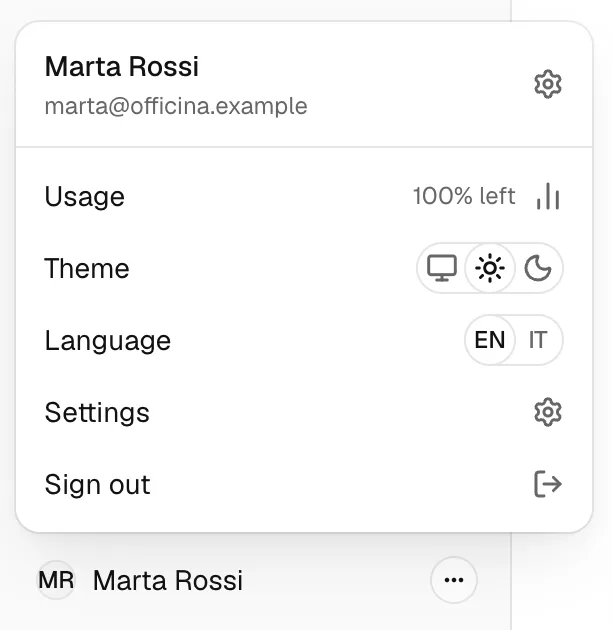
- Read Usage. It shows how much of the included model usage is left.
- Choose Usage to open Billing in the Portal.
Look at the plan or add Extra usage
- Choose Usage in the account menu.
- In Billing, find the plan and its payment, and Extra usage. Extra usage is spent after the included usage runs out.
When the usage runs out
Nadia tells you before it happens. A notice says Your included model usage is running down, and your Agents keep working. When the included usage is spent, a notice says Your included model usage is spent, and your Agents keep working on your Extra usage.
When none is left, a notice above the chat box says No model usage left.
- In the notice, choose Open billing. It opens Billing in the Portal.
- Add Extra usage, or wait for your plan to renew.
Warning
Until you add Extra usage or your plan renews, your Agents do not reply.
Then a notice says Your Agents can use the models again. The notice above the chat box goes when the next reply starts in that chat.
Open an Agent in the Portal
- Open the Agent's menu: the ⋯ on her row in the Agents list.
- Choose Open in Portal.
Her page in the Portal opens. A change made in the Portal reaches the Installation within a minute.
What the Portal holds
The Portal is where your company manages its account: its people, its Installations and Agents, the Agent templates and plugins of its Library, its usage and its billing. Each person also connects their apps there, under Connected apps.