Alveare HQ
Install Alveare HQ on the company's computer, set up your company's workspace, invite your colleagues, choose who can write to each Agent and keep the workspace running.
Alveare HQ runs your company's workspace on one computer at the company, and is where you decide who is in it and who can write to each Agent. You set it up once. After that it opens when someone logs in to that computer, and colleagues chat in the workspace from Alveare.
Choose the computer
Install Alveare HQ on a computer that stays on at the company, on the office network, often the one Nadia runs on. Colleagues reach the workspace through this computer, so while it is off, or nobody is signed in to it, they cannot use the chat.
- A Mac needs Apple silicon and macOS 13 or later.
- On Windows, Alveare HQ uses WSL, a part of Windows. If it is off, Alveare HQ offers Turn on WSL, and Windows may restart the computer.
- On Linux, Docker Engine must be installed and running, with Docker Compose 2.24.4 or later, and your account allowed to use it.
Install Alveare HQ
- In the Portal, open Get the apps.
- Under Alveare HQ, choose the download for the computer's system.
- Install Alveare HQ on the computer, then open it.
On the computer, the app and its download keep the name Alveare Server, which Alveare HQ had before; its window says Alveare HQ.
Set up your company's workspace
-
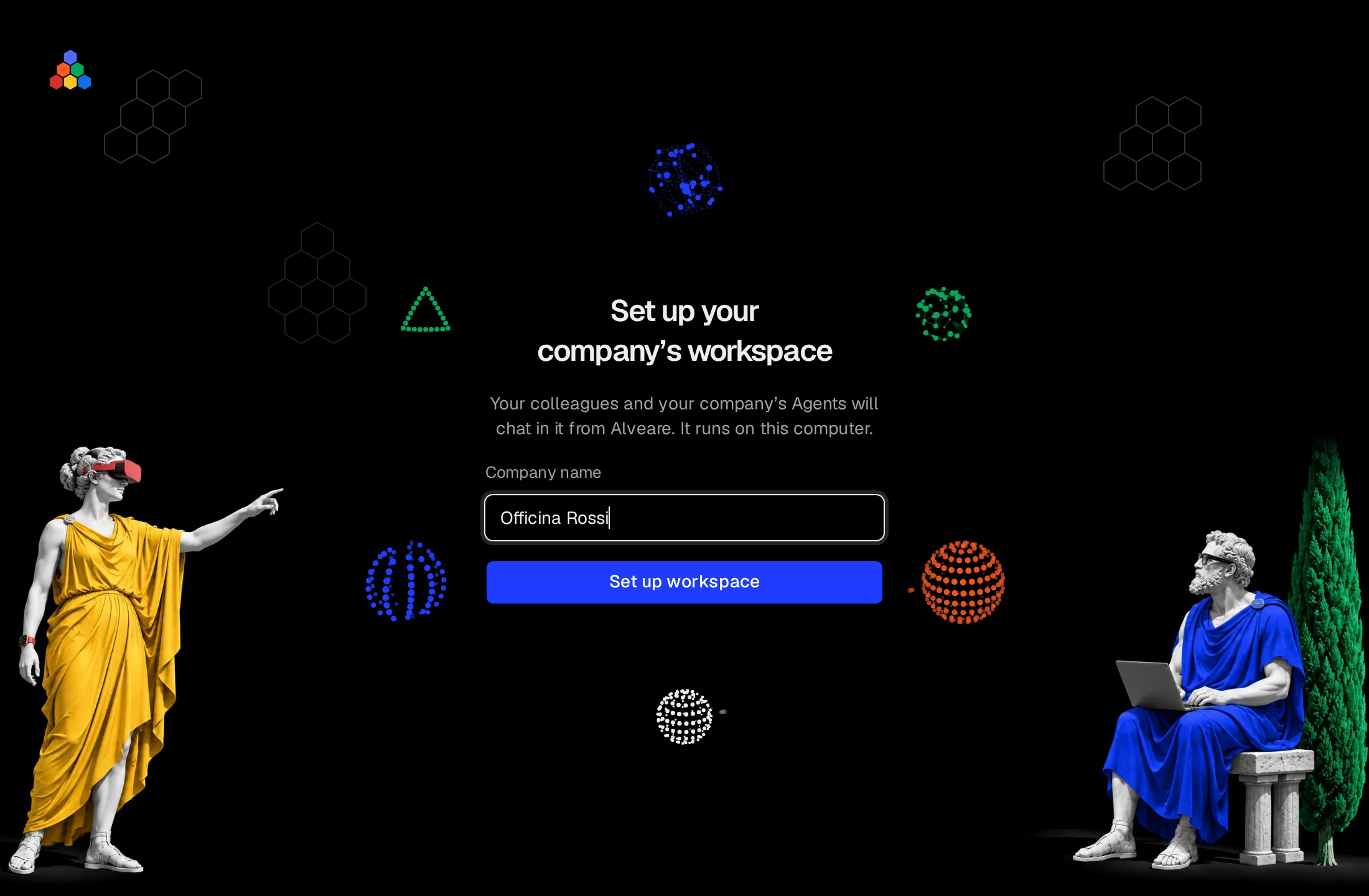
In Company name, type your company's name. Colleagues see it in Alveare.
-
Click Set up workspace.
-
Wait while Alveare HQ goes through its steps: Get this computer ready, Start the chat service and Create the workspace. The first setup downloads what the computer needs, once, so keep it on the internet.
-
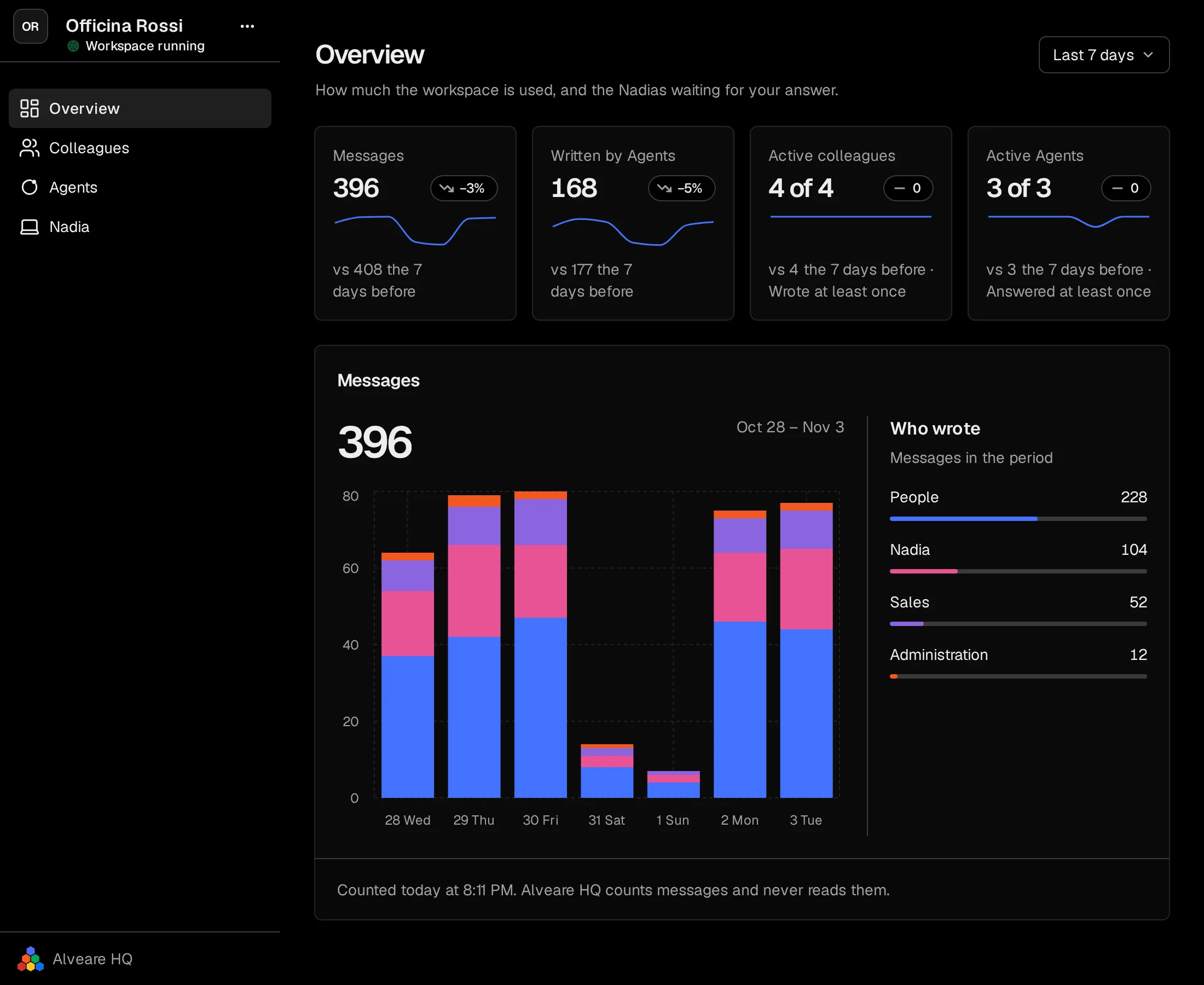
When it is done, the window shows your company's name with the status Workspace running, and opens on Overview.
The list on the left holds the window's places: Overview, Colleagues, Agents and Nadia.
See how the workspace is used
Overview shows how much the workspace was used over the last 7 or 30 days, each figure against the days before:
- Messages: every message written, in channels and direct messages.
- Written by Agents: the messages the Agents wrote.
- Active colleagues and Active Agents: how many of the colleagues and Agents in the workspace now wrote at least once.
Below, the messages of each day are split between people, colleagues who left included, and each Agent, and Who wrote ranks the people, together, and each Agent by the messages they wrote. Alveare HQ counts messages and never reads them: Overview shows no message and no channel's name.
While a Nadia waits for an answer, Overview lists her under Needs attention.
Invite your colleagues
Each colleague joins with an invite link of their own. A link lets one person join, once, within 7 days, so a link that reaches someone else, or sits in an inbox, soon lets no one in. Your colleague opens it from anywhere: on a computer it opens Alveare, or offers to install it first. On an iPhone they open it too, or scan its code.
- Open Colleagues and click Invite a colleague at the top of the page.
- Alveare HQ shows the new link. Click the copy button at the end of it and send it to one colleague, in an email or a message. A colleague beside you can scan its code with their phone instead.
- The colleague opens the link in Alveare and types their name: see Join Alveare.
Make a new link for each colleague. The invites still waiting are listed above the colleagues, under Invite colleagues, each with the day it stops working; once a colleague joins, their invite leaves the list. To send a link again, click Show link. If a link went to the wrong person or leaked, open the ⋯ beside it and choose Cancel invite: it stops letting anyone in at once, and you can make a new one.
Remove a colleague
Colleagues lists the people who joined. To take someone out of the workspace, open the ⋯ beside their name, choose Remove from workspace, then Remove colleague. They are signed out on every device and cannot open the chat; their messages stay in the channels. In the chat, they appear under Archived in a channel's members, and Alveare no longer suggests them when someone mentions a person or writes a new message. To let them back in, send them a new invite link.
Choose who can write to each Agent
Agents lists every Agent in the workspace, with the computer the Agent's Nadia runs on, the channels the Agent is in under In, and Who can write. Open channels are named; private channels are only counted. An Agent answers only the people who can write to the Agent, and a new Agent starts with everyone.
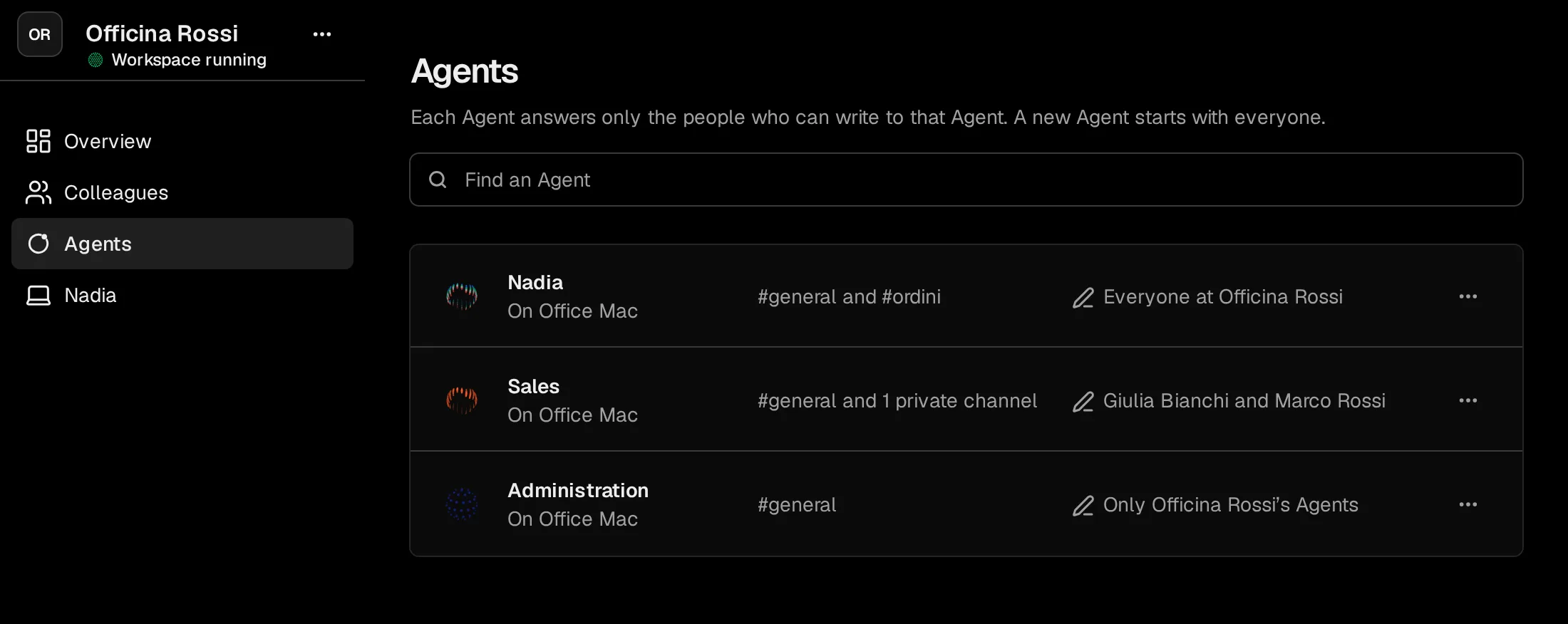
- Open the ⋯ beside an Agent, such as Sales, and choose Change who can write to Sales.
- Choose one:
- Everyone at the company: every colleague in a channel or a direct message with the Agent.
- Chosen colleagues: only the colleagues you tick in the list below.
- Only the company's Agents: no colleague. The company's other Agents can still give the Agent work.
- Click Save.
Whoever is in a channel with the Agent still reads what the Agent writes there. Under Everyone and under Chosen colleagues, the window reminds you that those colleagues can use the Agent to work on the Agent's computer, with the accounts and tools the Agent has there.
In Alveare, a colleague is offered only the Agents they can write to, and an Agent answers only the people who can write to the Agent, in channels and in direct messages. The Agents follow a change within a minute, and Nadia herself as soon as none of the Agents is working. In Nadia, each Agent's People shows the Alveare row, set in Alveare HQ.
Let the Agents in
When Nadia asks to join, her request opens over whichever page is open, with a four-digit code. Check that Nadia shows the same code, then choose Allow. Later leaves the request under Needs attention, and Nadia in the list on the left shows how many wait. Nadia's Agents in Alveare has every step, and how to remove a Nadia later.
Keep it running
- Closing the window leaves the workspace running. To see the window again, open Alveare HQ again, or choose Open Alveare HQ from its icon: in the menu bar on a Mac, beside the clock on Windows.
- Quit Alveare HQ stops the workspace too, and so do logging out of the computer and turning it off. Alveare HQ opens again when someone logs in, and starts the workspace.
- To stop the workspace and keep Alveare HQ open, open the ⋯ beside your company's name, choose Stop workspace, then confirm. It stays stopped, even after the computer restarts, until you choose Start workspace. Everything is kept on the computer.
Warning
While the workspace is stopped, colleagues cannot use the chat and the Agents cannot answer in it.
What the company's network must allow
Colleagues in the office reach the workspace over the office network. Colleagues outside it, at home, travelling or on their phone's mobile data, reach it over the internet: Alveare HQ keeps a connection open to four servers that carry colleagues' connections to this computer, and publishes the computer's address so that Alveare on their devices can find it. Everything is encrypted end to end, and nothing needs opening inward: no port to forward and no inbound rule.
If the company's firewall, web filter or proxy limits outbound traffic, allow this from the computer with Alveare HQ:
- Outbound TCP 443 to the four hostnames below, as HTTPS that upgrades to WebSocket. A filter that allows web browsing on port 443 but blocks WebSocket upgrades stops colleagues outside the office, so allow these hostnames as a WebSocket destination, not only as an HTTPS one.
- Outbound TCP 443 to
dns.iroh.link, where Alveare HQ publishes the computer's address.
The four hostnames:
e279zb8weaamgx6ep.euc1.relay.iroh-svc.come279zb8weaamgx6ep.use1.relay.iroh-svc.come279zb8weaamgx6ep.usw1.relay.iroh-svc.come279zb8weaamgx6ep.aps1.relay.iroh-svc.com
Also allow, so that colleagues' devices connect to this computer directly, without passing through the four servers:
- Outbound UDP 7842 to the four hostnames.
- Outbound UDP to any address and any port. A narrower range of ports does not work. Without it, colleagues still reach the workspace, through the four hostnames, more slowly.
Alveare HQ checks these servers' certificates against the computer's own certificate store, so a firewall that inspects encrypted traffic works once its certificate authority is installed on the computer. If outbound traffic must go through a proxy, set it in the computer's network settings as a fixed proxy: Alveare HQ follows it. An automatic proxy configuration file is not read.
If this is blocked, colleagues in the office keep chatting as usual, and colleagues outside the office cannot reach the workspace. When the four hostnames are blocked, Alveare HQ's window says that colleagues outside the office can't reach this computer, and lists the addresses to allow.
Update Alveare HQ
When a new version is ready, the window says so at the top of the page. Click Update. Alveare HQ installs it and restarts by itself; colleagues cannot reach the workspace while it restarts, and nothing is lost.
When setup stops
The window says what stopped it and what to do, and Try again carries on from where it stopped. What is done so far is kept.
- This computer needs Docker: install Docker Engine with Docker Compose 2.24.4 or later, or start Docker, then try again.
- This account can’t use Docker: add your account to the docker group, sign out and back in, then open Alveare HQ.
- Windows needs WSL turned on: choose Turn on WSL. If Windows asks, restart the computer; setup carries on when Alveare HQ opens again.
- Virtualization is off on this computer: turn it on in the computer's BIOS or UEFI settings, then restart the computer.
- This Mac needs a newer macOS: update macOS to version 13 or later.
- What this computer needs for the workspace didn’t download: check the computer's internet connection, then try again.
- This computer isn’t on a network: connect the computer to the office network, then try again.
- Another program uses the port colleagues or Nadia reach the workspace on: close that program or restart the computer, then try again.
- This computer’s disk is full: free up space on the computer, then try again.
- The system keychain is locked: sign in to the computer or unlock the keychain, then try again.
- Another computer on the office network answers to the name colleagues reach the workspace at: turn off or rename that computer, then try again.
- Part of Alveare HQ is missing or damaged: download Alveare HQ again from the Portal and install it over this one; setup carries on when it opens again.
For any other problem, Copy details copies what happened, for whoever helps you with the computer.
Caution
If the window says This computer holds an earlier workspace, do not set up again: that would lock the earlier workspace's messages out. Contact nadicode.
Alveare
Your company's work chat, where colleagues and the Agents work in the same channels, and Alveare HQ, which runs it at your company.
Join Alveare
Install Alveare on a computer or an iPhone, join your company's workspace with the invite link, and work with colleagues and the Agents in its channels.